Call Activity
Overview
The Call Activity page provides a real-time and historical view of all calls on your Cloud PBX. It is split into three tabs: current live calls, recent call history, and aggregated call statistics.
Navigate to Calls → Activity.
Current Calls Tab
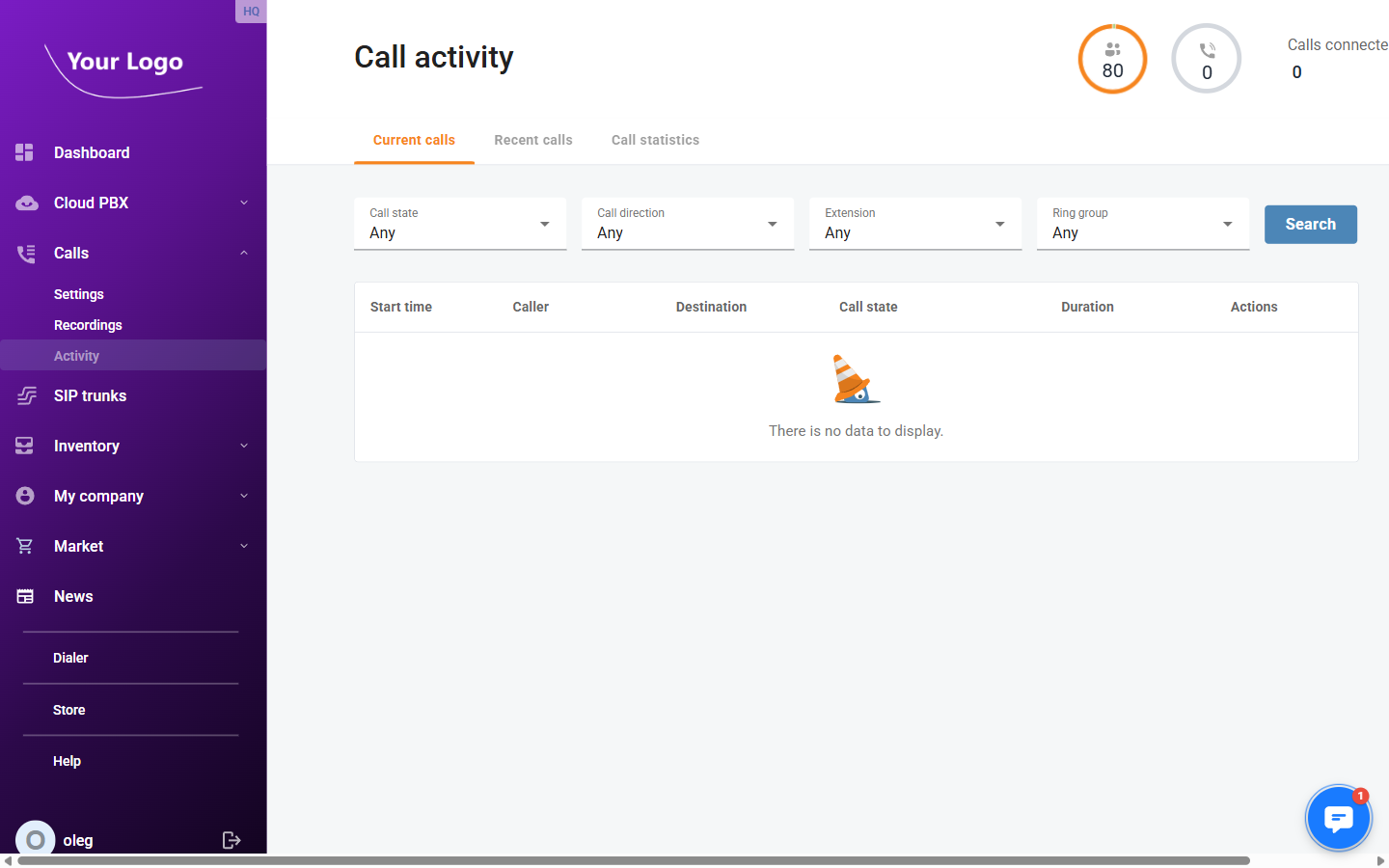
The Current Calls tab shows all calls in progress at this moment. The list updates automatically.
Filters
| Filter | Description |
|---|---|
| Call state | Filter by the current state of the call: Trying, Ringing, Connected, Holding, Queued, or Parked. |
| Call direction | Filter by direction: Incoming or Outgoing. |
| Extension | Show only calls involving a specific extension. |
| Ring group | Show only calls routed through a specific ring group. |
Click Search to apply filters.
Columns
| Column | Description |
|---|---|
| Start time | Date and time the call began. |
| Caller | The extension or number that initiated the call. |
| Destination | The extension or number being called. |
| Call state | Current state of the call (Connected, Ringing, Holding, etc.). |
| Duration | How long the call has been active, updated in real time. |
| Actions | Call control buttons (see below). |
Call Control Actions
Depending on your permissions, the following actions are available per call:
| Action | Description |
|---|---|
| Transfer | Transfer the call to another extension or external number. |
| Put on hold | Place the call on hold. |
| Resume | Resume a call that is currently on hold. |
| Add extension | Add another extension as a participant. |
| Disconnect | End the call. |
| Spy | Listen to a live call silently — the other parties cannot hear you. |
| Whisper | Speak to the agent only while monitoring; the caller cannot hear you. |
| Barge | Join the call as a full participant. |
Spy, Whisper, and Barge are only available when Call Supervision is enabled in Call Settings.
Recent Calls Tab
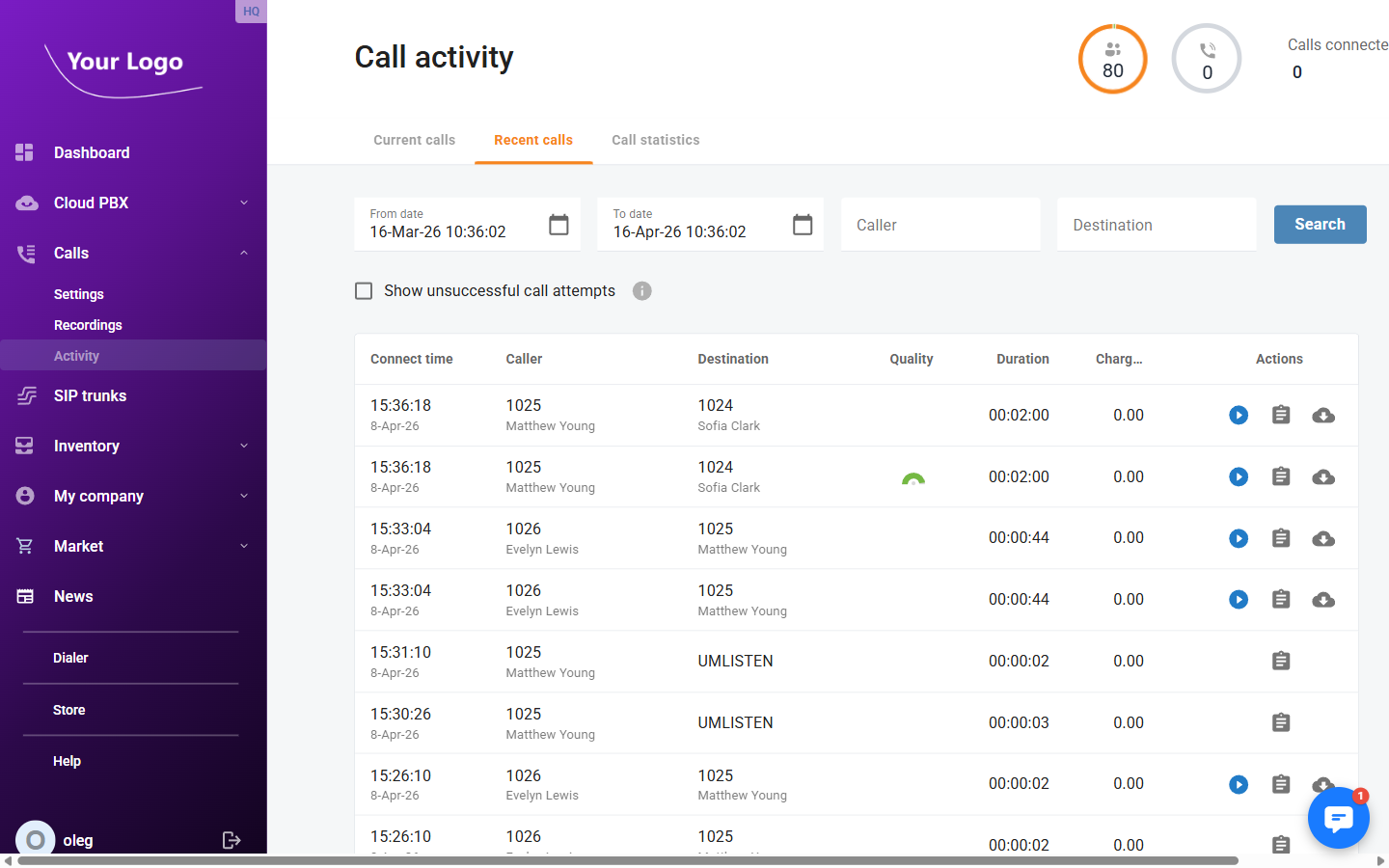
The Recent Calls tab shows the call history for the account.
Filters
| Filter | Description |
|---|---|
| From date | Start of the date/time range to search. |
| To date | End of the date/time range to search. |
| Caller | Filter by the calling party number or name. |
| Destination | Filter by the called party number or name. |
| Show unsuccessful call attempts | Include calls that did not connect (busy, no answer, rejected). |
Click Search to apply filters.
Columns
| Column | Description |
|---|---|
| Connect time | Date and time the call connected. |
| Caller | Calling party — number and name if resolved. |
| Destination | Called party — number and name if resolved. |
| Quality | Call quality indicator, if available. |
| Duration | Length of the call in HH:MM:SS format. |
| Charge | Cost charged for the call in the account currency. |
| Actions | Per-row actions: play recording, view call details, download recording, delete recording. |
Row Actions
| Button | Description |
|---|---|
| ▶ Play | Opens an inline audio player to listen to the recording without leaving the page. |
| 📋 Details | Opens the Call Detail Record dialog with full call metadata (connect/disconnect times, disconnect reason, country, area, charge). |
| ☁ Download | Downloads the recording file. |
| 🗑️ Delete | Deletes the recording after a confirmation prompt. |
Available action buttons depend on the permissions assigned to your portal user role.
Call Statistics Tab
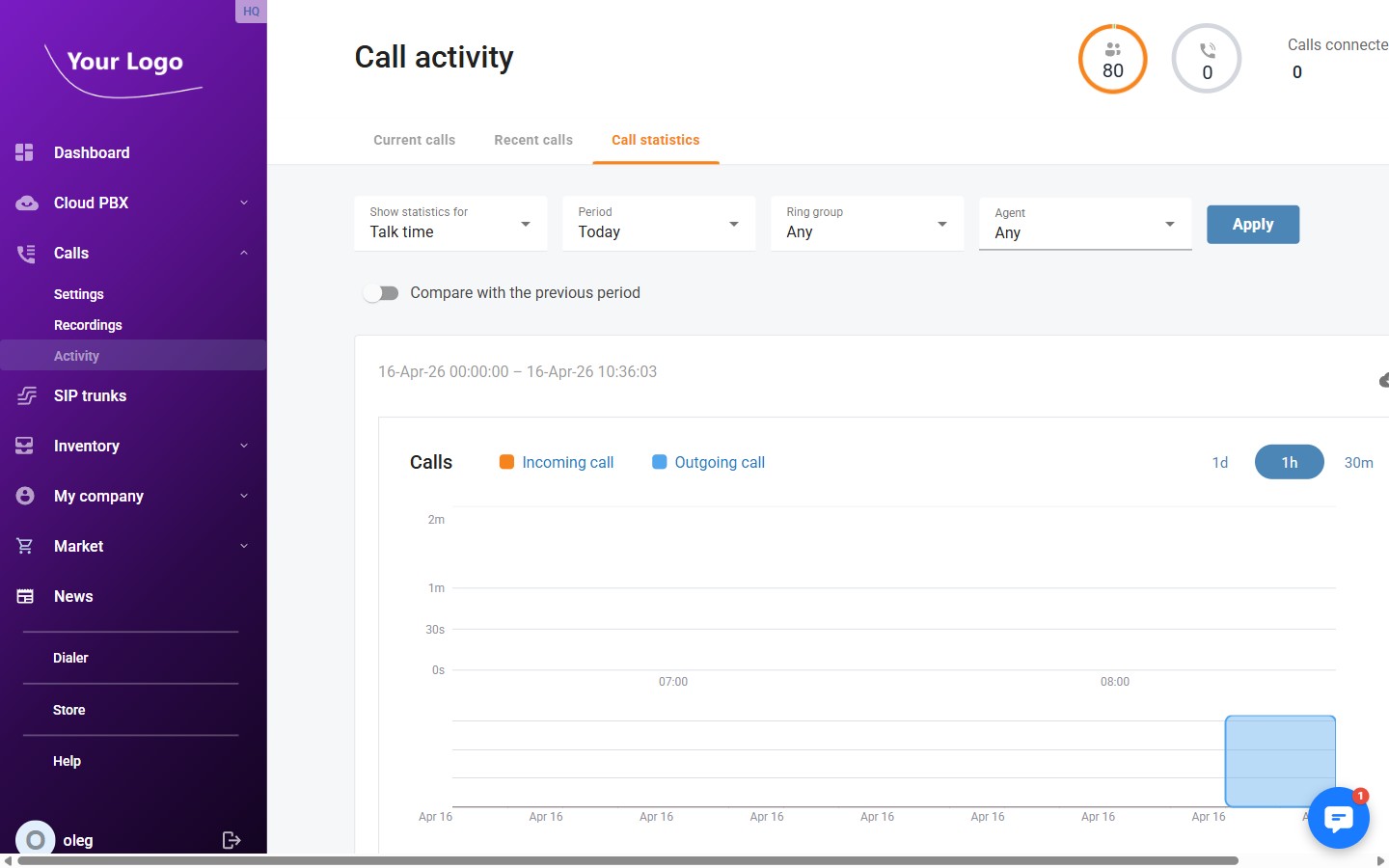
The Call Statistics tab displays a bar chart of call metrics over a selected time period.
Filters
| Filter | Description |
|---|---|
| Show statistics for | The metric to chart: Connected calls, Talk time, Hold time, or Wrap-up time. |
| Period | Time range: Today, Yesterday, Last 7 days, Last 14 days, Last 30 days, or Custom. |
| Ring group | Limit statistics to calls routed through a specific ring group (optional). |
| Agent | Limit statistics to a specific agent/extension (optional). |
Click Apply to update the chart.
Use the Show / Hide buttons next to Incoming and Outgoing to include or exclude each call direction from the chart.
Click Download CSV to export the underlying data as a spreadsheet.