Devices
Overview
The Devices section is where you register and manage the IP phones used by your company. Each device entry links a physical phone — identified by its MAC address and model — to the platform so that:
- The phone can be automatically configured (provisioned) without manual setup.
- Individual phone lines (ports) can be assigned to extensions, giving that phone a direct number.
- You can monitor which phones are in use and how many of their lines are free.
PortaSwitch generates a configuration file unique to each phone's MAC address. When the phone boots, it downloads this file and registers automatically — no manual SIP configuration on the phone is required provided auto-provisioning is enabled.
Navigate to Inventory → Devices.
Devices List
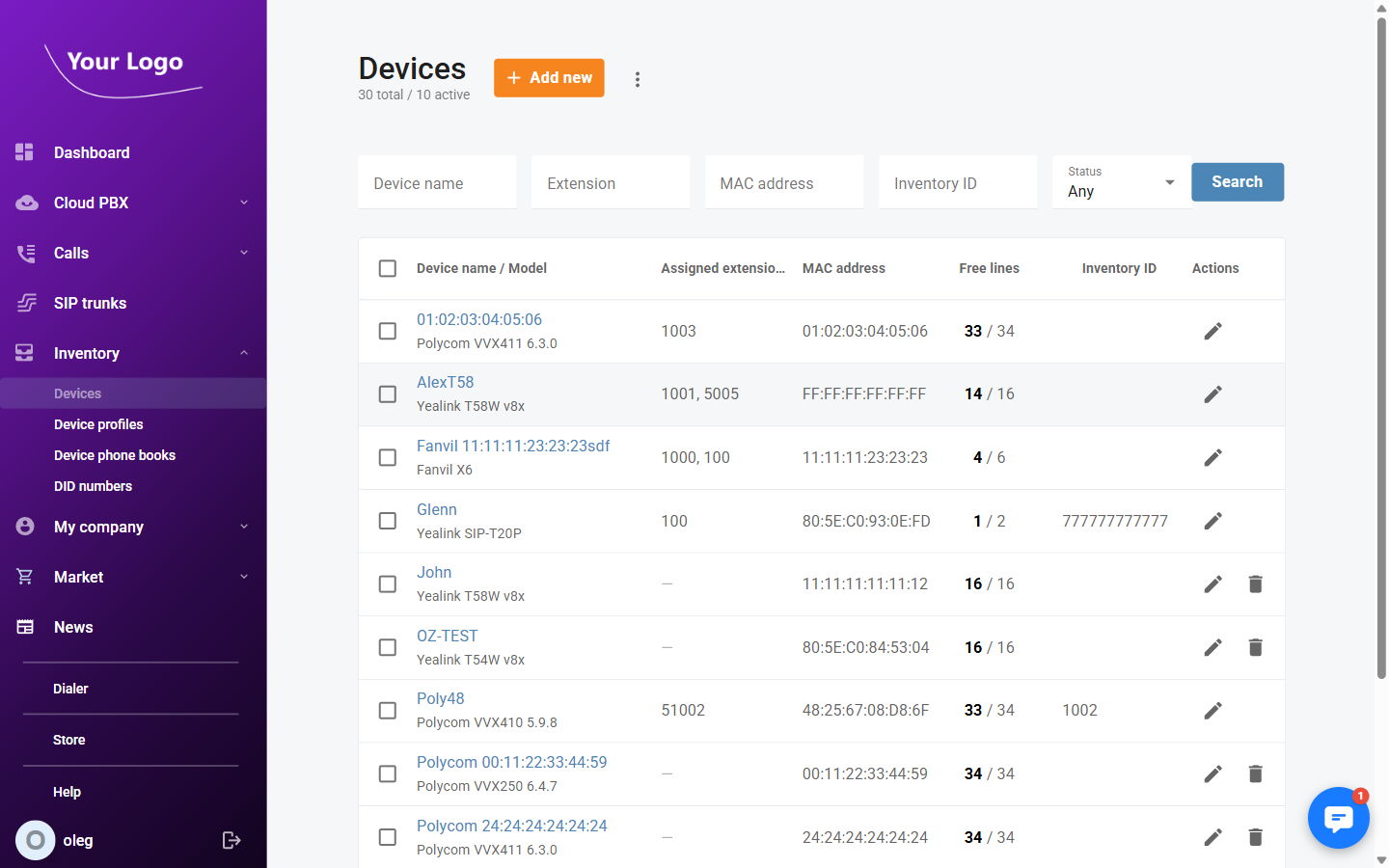
| Column | Description |
|---|---|
| Device name / Model | Friendly name and the manufacturer model of the phone |
| Assigned extensions | Extensions currently assigned to lines on this device |
| MAC address | The hardware identifier used to generate the device's configuration file |
| Free lines | How many phone lines are unassigned out of the total available (e.g. 4 / 6) |
| Inventory ID | Optional internal reference code for asset tracking |
| Actions | Edit or delete the device |
Use the filter fields above the list to search by Device name, Extension, MAC address, Inventory ID, or Status (Not used / Used / Completely used).
Adding a Device
- Click + Add new device on the Devices page.
- Fill in the Add new device dialog:
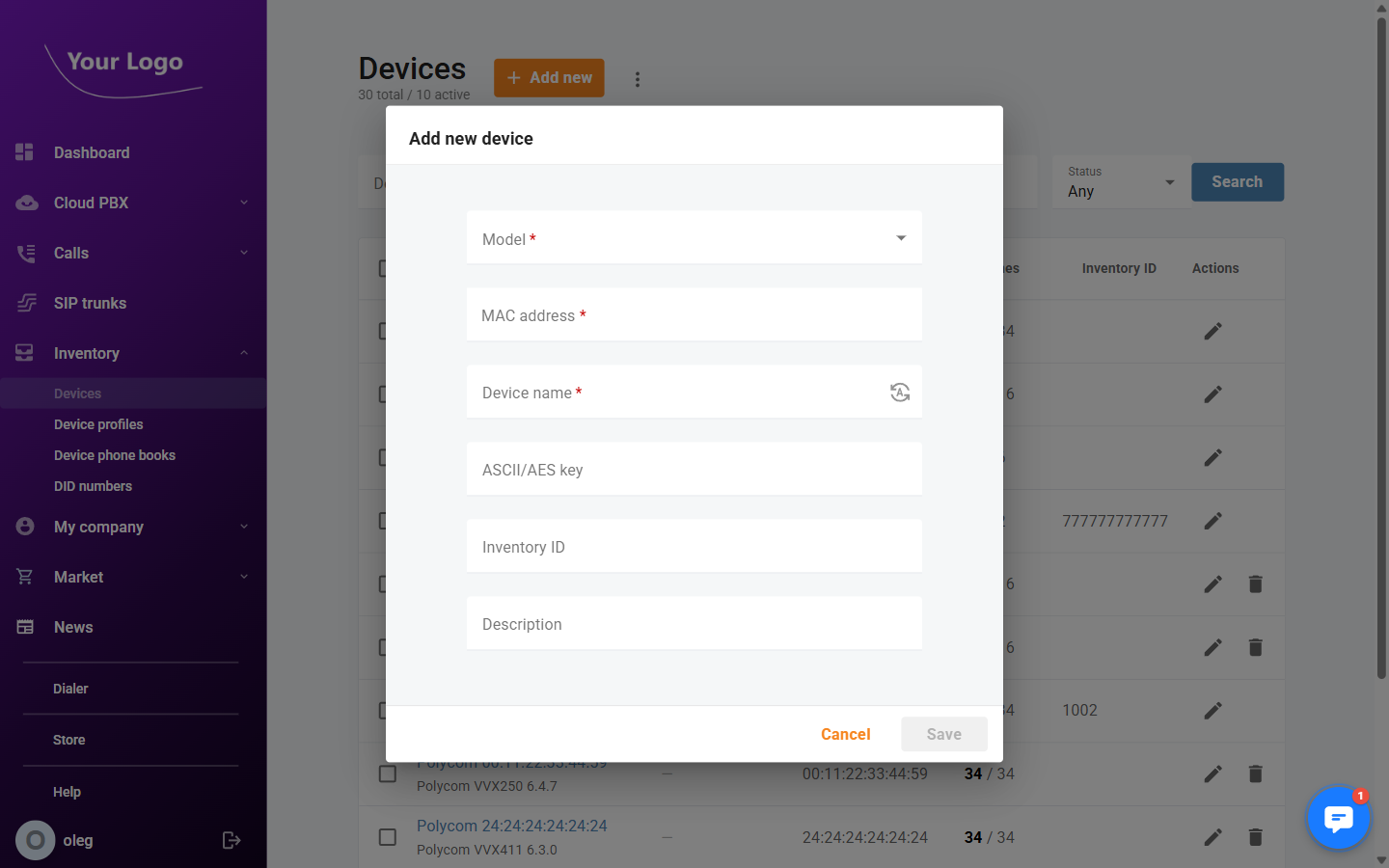
| Field | Required | Description |
|---|---|---|
| Model | Yes | Select the phone manufacturer and model from the list of supported devices |
| MAC address | Yes | The phone's hardware address, printed on a label on the device (format: xx:xx:xx:xx:xx:xx) |
| Device name | Yes | A friendly label for this phone. Click the auto-generate icon to create one from the model and MAC address |
| ASCII / AES key | No | Encryption key for the configuration file (Yealink: 16 chars; others: 16, 32, or 64 chars) |
| Inventory ID | No | Optional internal asset tracking reference (max 64 characters) |
| Description | No | Free-text notes about this device (max 255 characters) |
- Click Save. The device is created and you are taken to its detail page.
To add many phones at once, use Import devices from a file (available from the list page actions menu). Prepare a CSV file with one device per row (model, MAC address, name) and upload it.
Device Details
Click any device in the list to open its detail page. The header shows the device name, model, and a summary of used and free lines.
The detail page has up to three tabs: General, Lines, and Profile.
General Tab
The General tab displays the device's hardware identity and optional metadata.
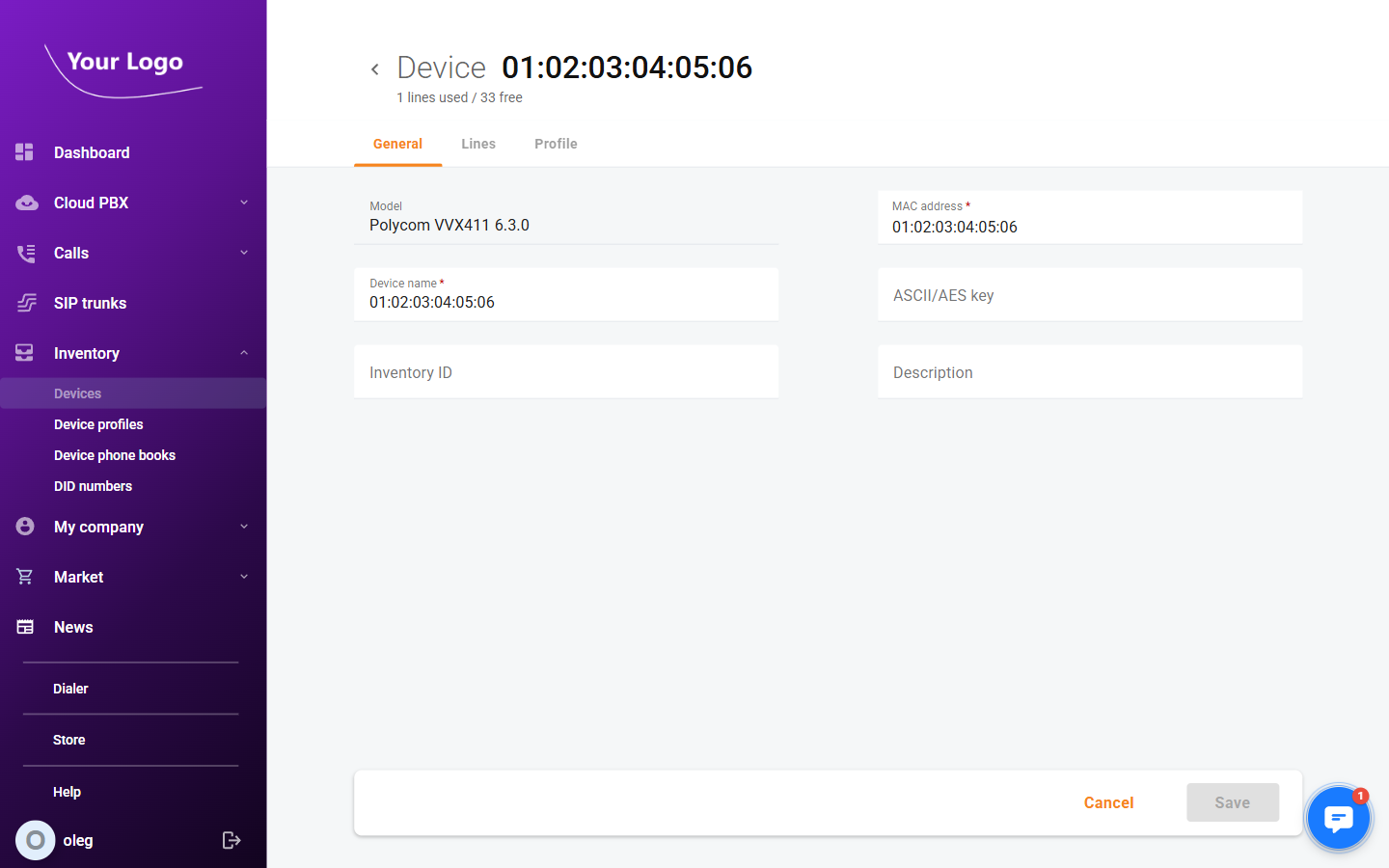
| Field | Description |
|---|---|
| Model | Read-only. The phone model selected at creation time |
| MAC address | The phone's hardware address. Can be corrected if entered incorrectly |
| Device name | Editable friendly label |
| ASCII / AES key | Encryption key for the provisioned configuration file |
| Inventory ID | Optional internal asset tracking code |
| Description | Free-text notes |
Click Save to apply changes.
Lines Tab
The Lines tab shows every physical phone line (port) on the device and the extension assigned to it.
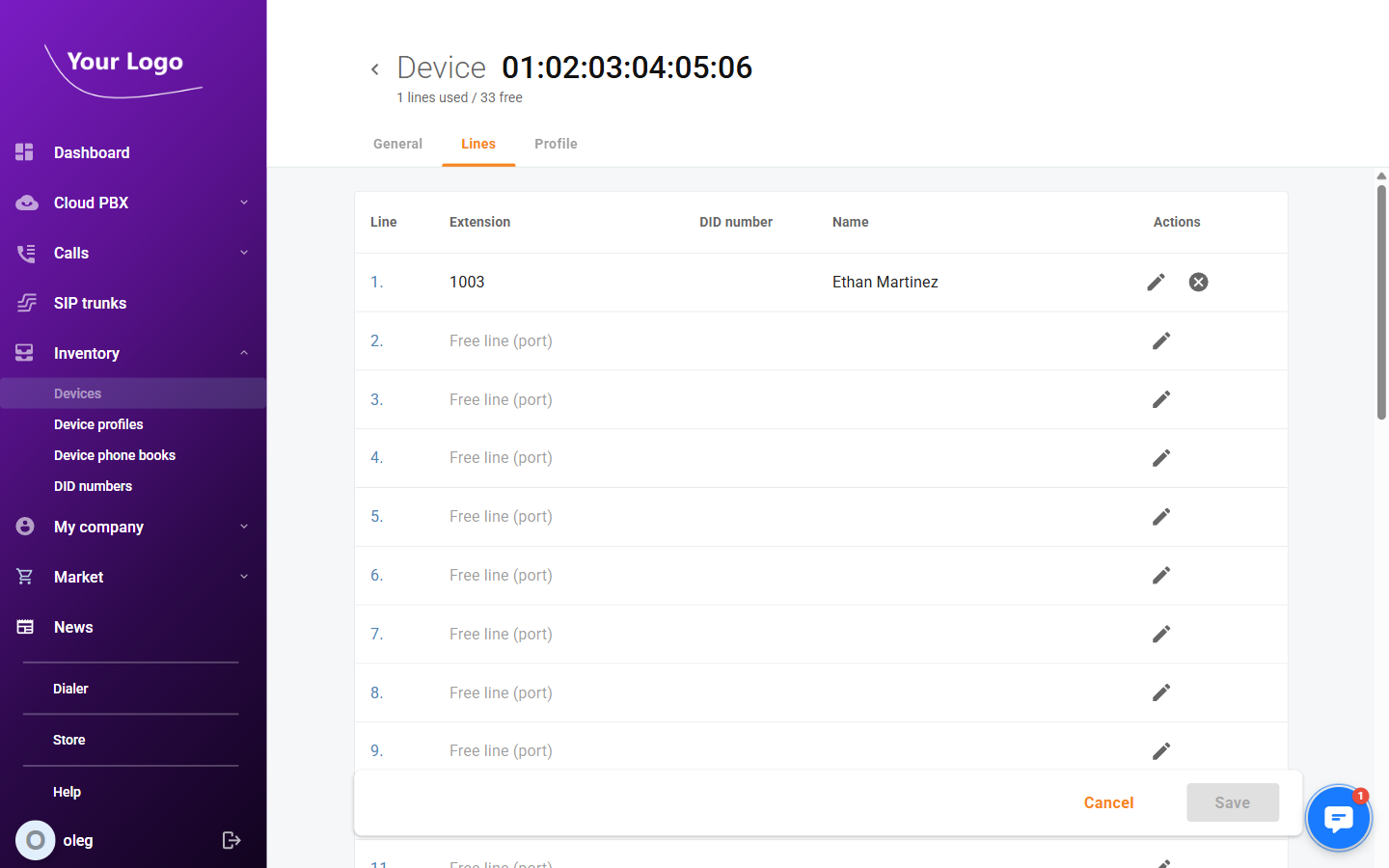
| Column | Description |
|---|---|
| Line | Port number on the phone (Line 1, Line 2, …) |
| Extension | The extension currently registered on this line |
| DID number | The phone number associated with this extension |
| Extension name | The display name of the extension user |
Assigning an Extension to a Line
- Click the edit icon on the desired line.
- In the Assign extension dialog, search for and select an extension.
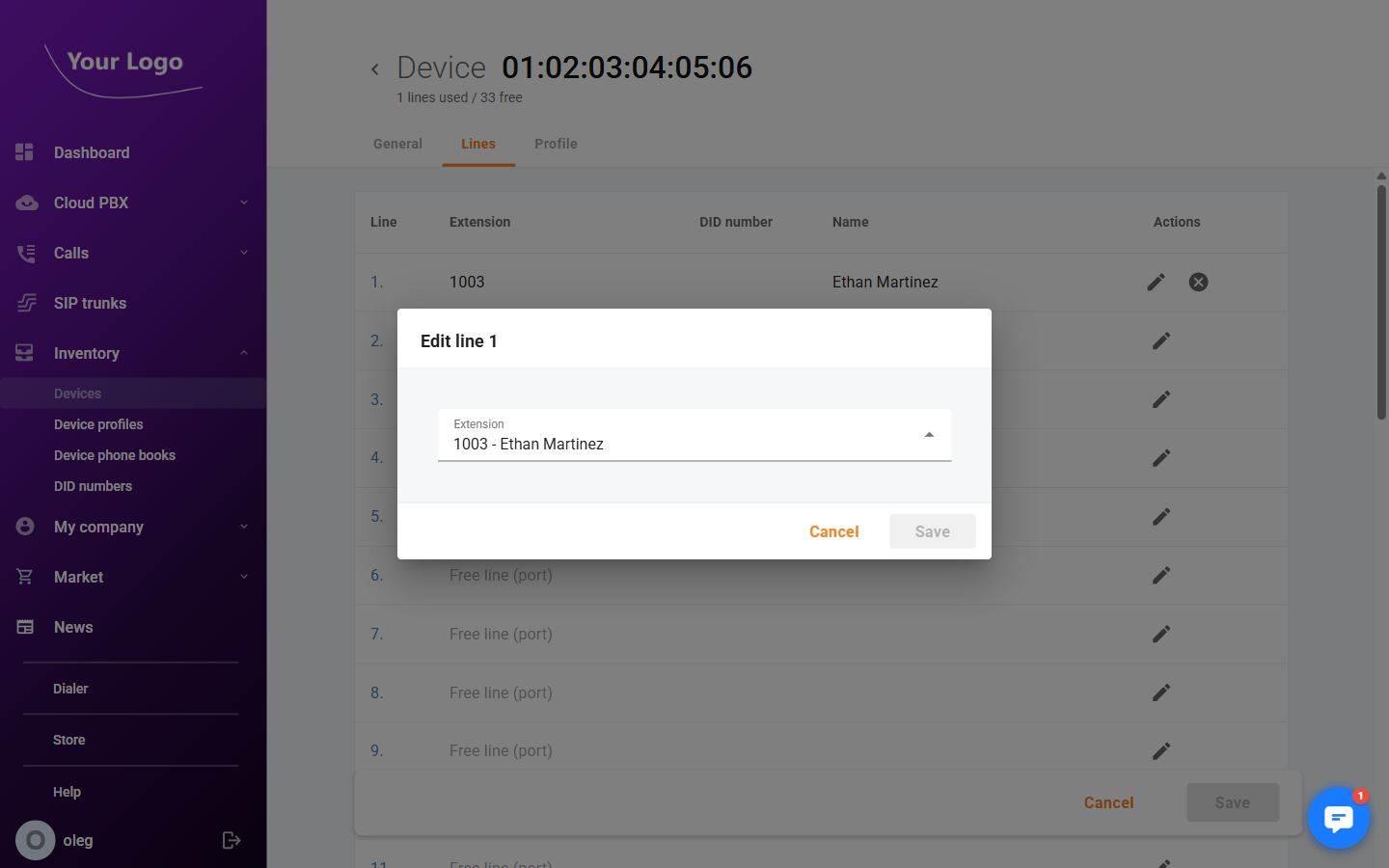
- Click Save.
The phone will pick up the new assignment the next time it downloads its configuration file (typically at next boot, or when provisioning is forced).
Releasing a Line
To free a line, click the release icon on that line and confirm. The extension is unlinked but neither the extension nor the device is deleted.
Profile Tab
The Profile tab lets you apply a device profile to this phone, which controls its full configuration: SIP settings, programmable key actions, and phone book assignments.
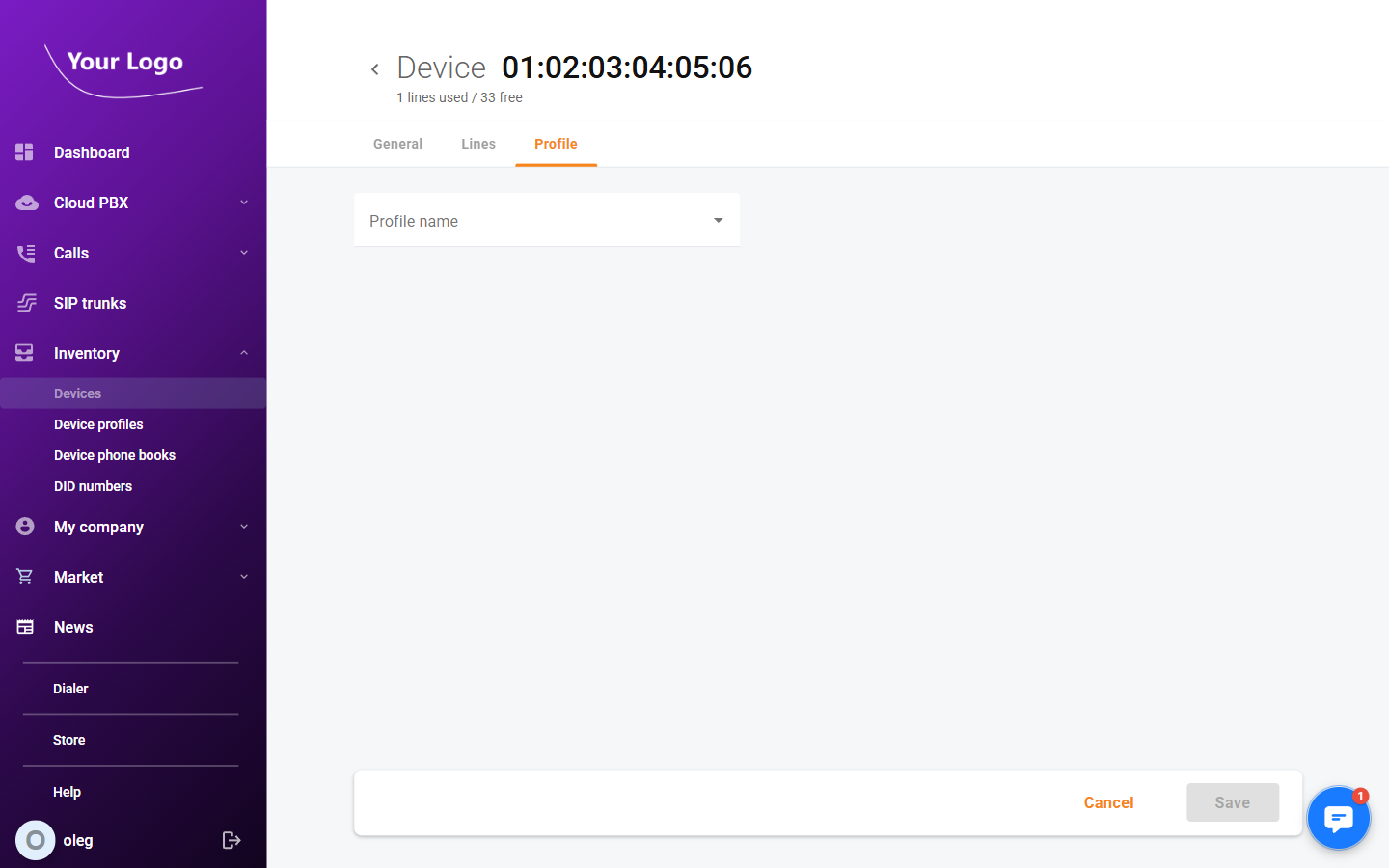
Select a profile from the Device profile dropdown and click Save. The phone will download the updated configuration at its next provisioning cycle.
The Profile tab only appears for device models that support auto-provisioning profiles. If the tab is absent, the device's configuration must be managed on the phone directly.
Deleting a Device
A device can only be deleted when all of its lines are free (no extensions assigned). To delete:
- Open the device detail page.
- Go to the Lines tab and release all assigned extensions.
- Click Delete device and confirm.