My Profile
Overview
My Profile lets you manage your own account settings — display preferences and login security. Open menu "My company > My profile", or click your login name in the bottom-left corner of the page.
The page shows two tabs: Settings and Security.
Settings Tab
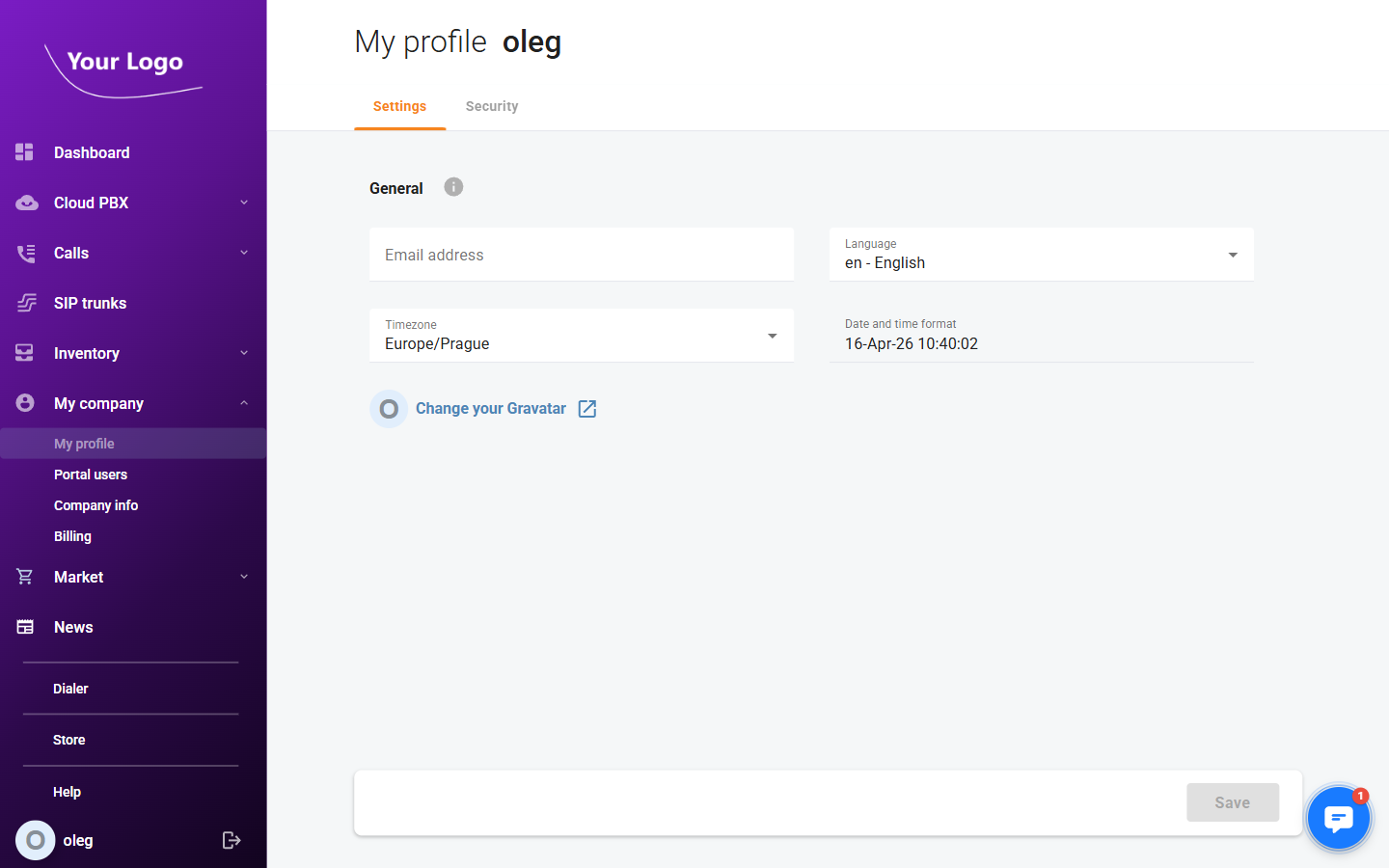
The Settings tab contains general display preferences for your user account.
| Field | Description |
|---|---|
| Email address | Your email address. Used for system notifications. |
| Language | Portal interface language (e.g. en – English). |
| Timezone | Your local timezone. Affects how dates and times are displayed throughout the portal. |
| Date and time format | Read-only preview of the current date/time based on the selected timezone. |
Gravatar
The portal uses Gravatar for user avatars. Click Change your Gravatar to open the Gravatar website and upload or update your profile picture. The avatar is linked to your email address.
Click Save to apply any changes.
Security Tab
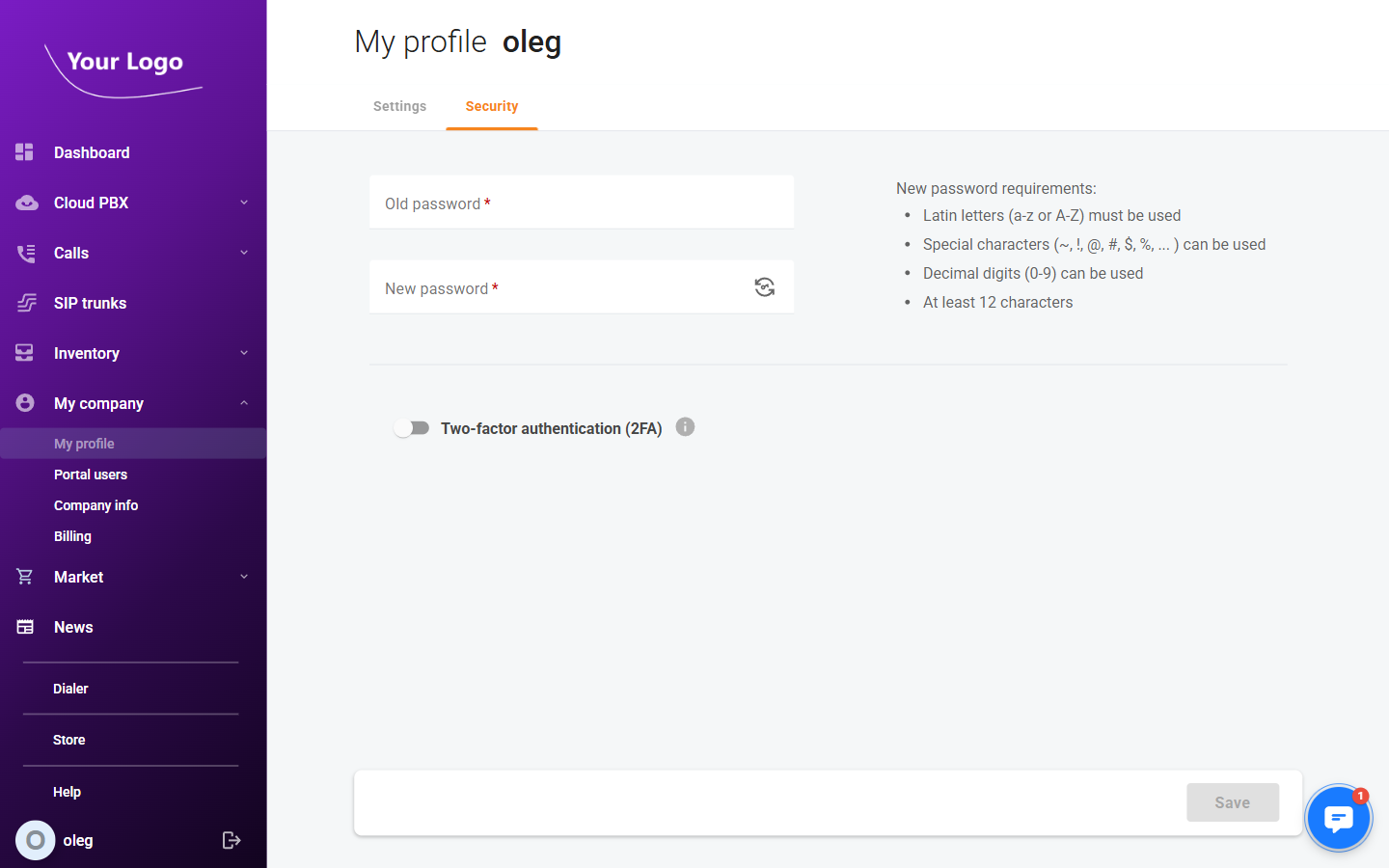
The Security tab lets you change your password and manage two-factor authentication.
Change Password
| Field | Description |
|---|---|
| Old password ✱ | Your current password, required to authorise the change. |
| New password ✱ | Your new password. Use the 🔄 icon to generate a secure random password. |
New password requirements:
- Latin letters (a–z or A–Z) must be used
- Special characters (
~,!,@,#,$,%,…) can be used - Decimal digits (0–9) can be used
- At least 12 characters
Two-Factor Authentication (2FA)
Enable the Two-factor authentication (2FA) toggle to add a second layer of security to your login. Once enabled, you will need to enter a one-time password (OTP) from an authenticator app (e.g. Google Authenticator) every time you sign in.
See Two-Factor Authentication for detailed setup instructions.
Click Save to apply any changes.