DID Numbers
Overview
DID Numbers (Direct Inward Dialling numbers) are external phone numbers assigned to your Cloud PBX. They allow callers from outside the company to reach specific extensions, ring groups, auto-attendants, or fax mailboxes directly, without going through an operator. This menu shows all DID numbers currently provisioned for your account and which phone lines they are assigned to.
Navigate to Inventory → DID numbers.
DID Numbers List
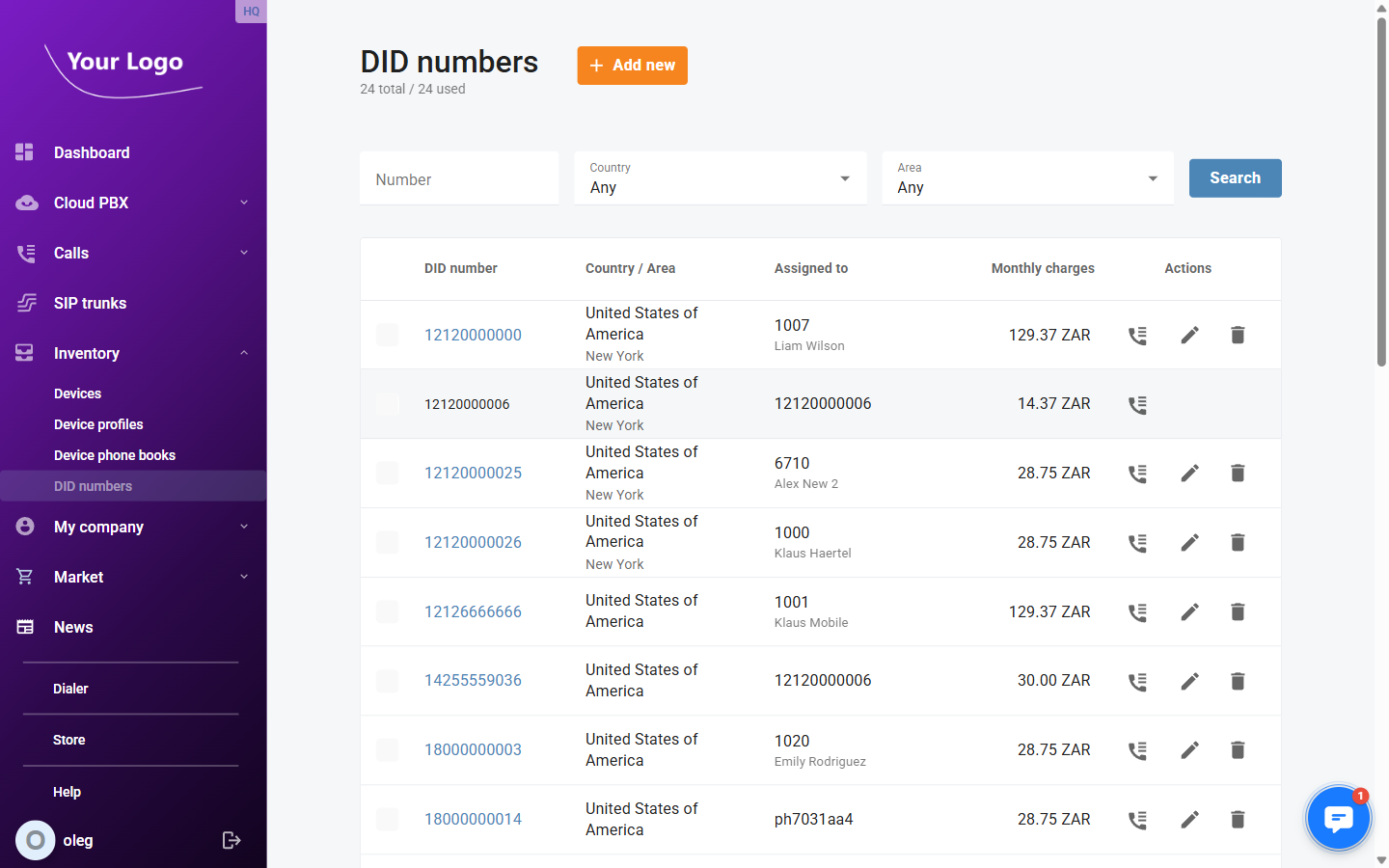
| Column | Description |
|---|---|
| DID number | The provisioned phone number in international format. |
| Country / Area | The country and geographic area the number belongs to. |
| Assigned to | The phone line (extension, ring group, auto-attendant, or fax mailbox) the number is routed to. Shows Not assigned if unassigned. |
| Actions | Edit (✏️) – assign or reassign the number; Delete (🗑️) – return the number to the provider. |
Use the Number, Country, and Area filters to search. Click Search to apply.
Click + Add new to activate a new DID number.
Adding a DID Number
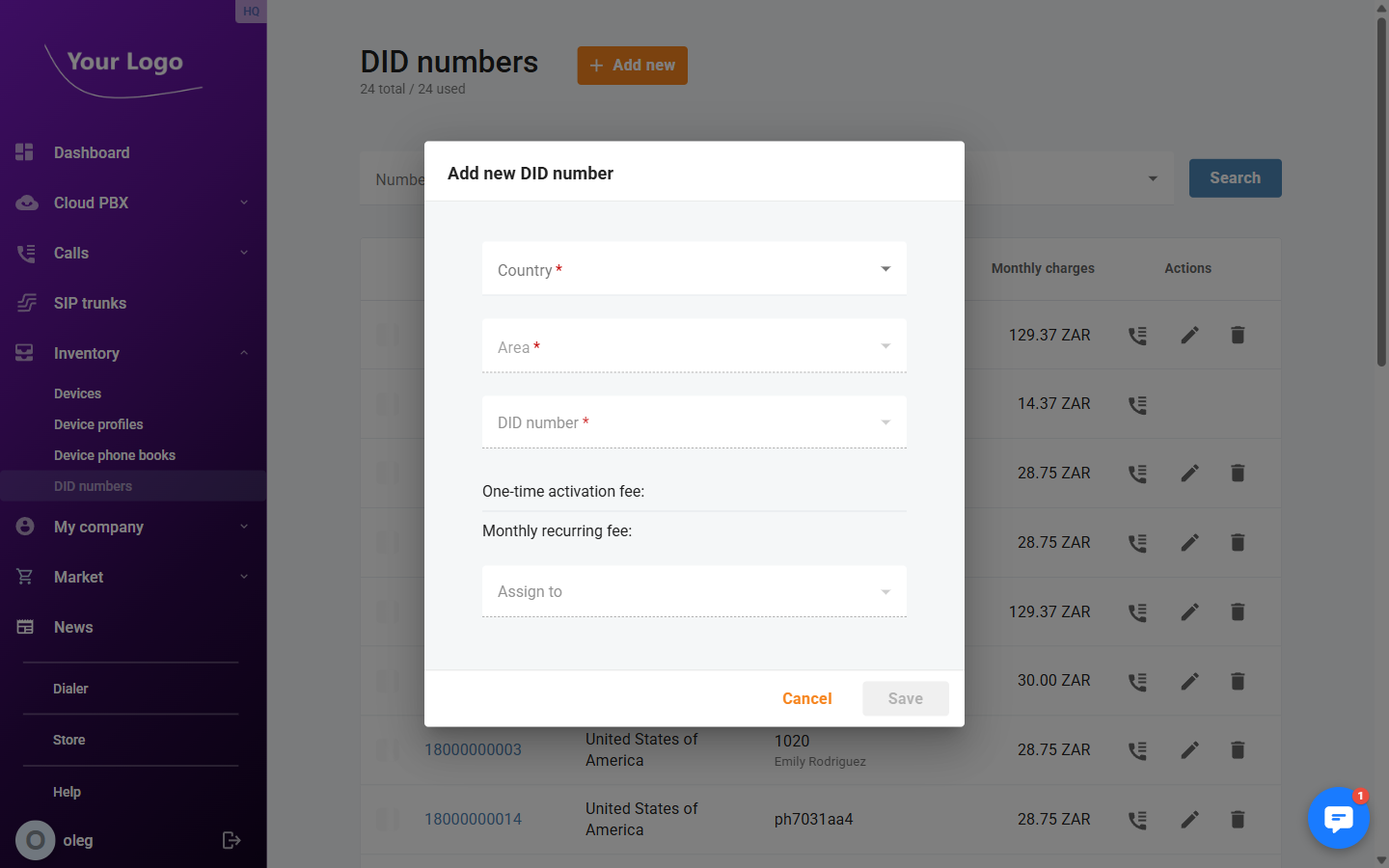
- Select the Country from the dropdown.
- Select the Area — the available areas are filtered by the selected country.
- Select a DID number from the available numbers in that area.
For some areas it is not possible to pre-select a specific number. If no number selector appears, clicking Save will assign the first available number in that area automatically.
The Fees section displays the charges associated with the selected number:
| Field | Description |
|---|---|
| One-time activation fee | A single charge billed when the number is first activated. |
| Monthly recurring fee | The ongoing monthly fee for keeping the number provisioned. |
Optionally, use the Assign to dropdown to assign the new number to an extension, ring group, auto-attendant, or fax mailbox immediately. You can also assign it later.
Click Save to activate the number.
Assigning a DID Number
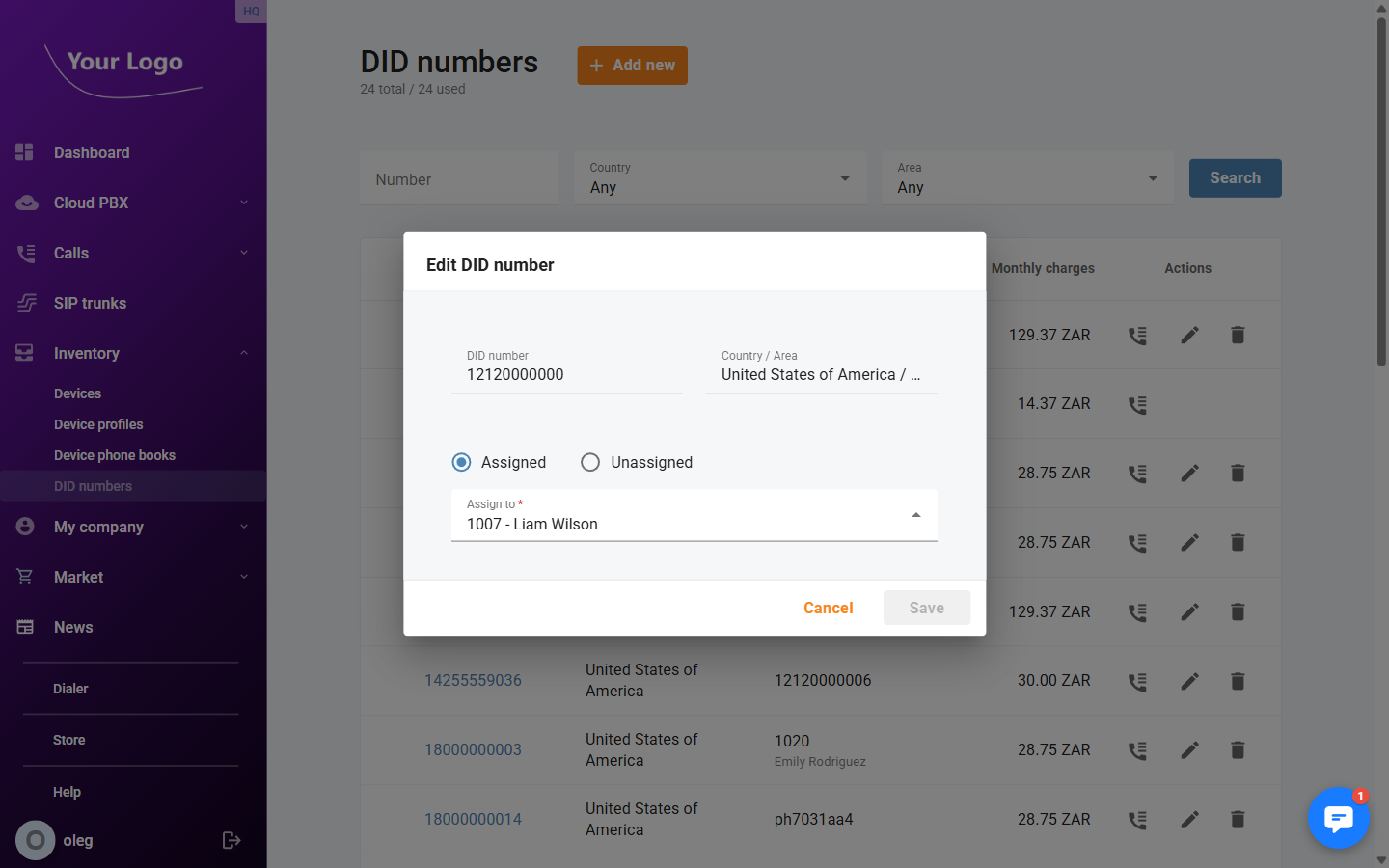
To assign or reassign an existing DID number to a phone line, click Edit (✏️) next to the number.
| Field | Description |
|---|---|
| DID number | The provisioned number (read-only). |
| Country and area | The country and area of the number (read-only). |
| Assigned to | Select the phone line to route incoming calls to. Use the radio button to switch between assigning to a phone line and leaving the number unassigned. |
Click Save to apply the assignment.
Deleting a DID Number
To return a DID number to your service provider, click Delete (🗑️) next to the number and confirm.
Deleting a DID number immediately unassigns it from any phone line and removes it from your account. This action cannot be undone.