Voicemail
Overview
Each extension can have a personal voicemail inbox. When a caller cannot reach an extension, they are guided to leave a message. Voicemail messages are stored in PortaSwitch and can be played, downloaded, or deleted directly from the portal.
The voicemail inbox is accessed from the Extension detail page, not from a separate menu. A badge on the Voicemail button shows how many unread messages are waiting.
Accessing Voicemail Messages
- Navigate to Cloud PBX → Extensions.
- Open the extension whose voicemail you want to review by clicking the edit icon (✏️) in its row.
- In the extension header, click the Voicemail button. The badge on it shows the number of new (unread) messages.
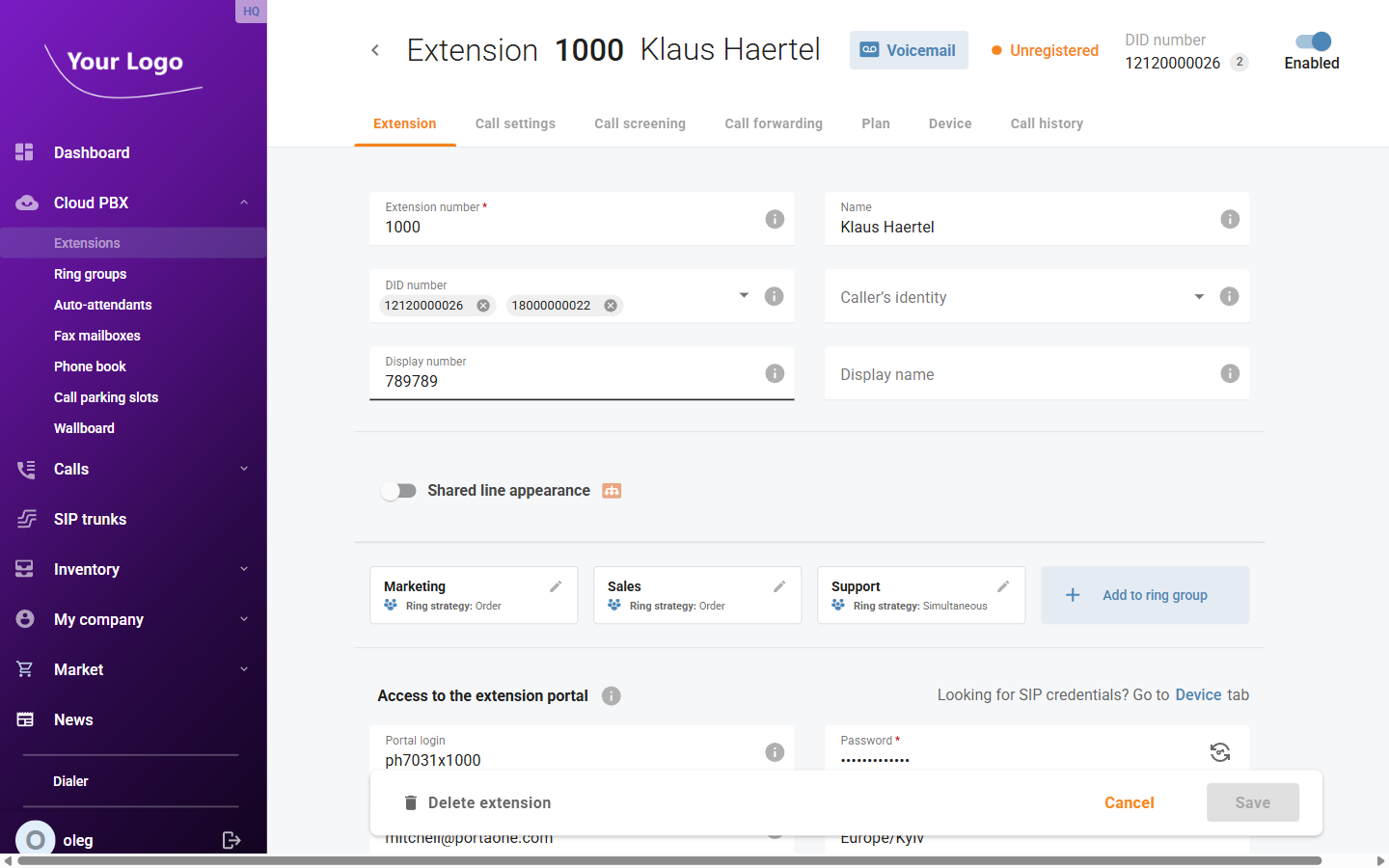
The Voicemail dialog opens, listing all messages for the extension.
Voicemail List
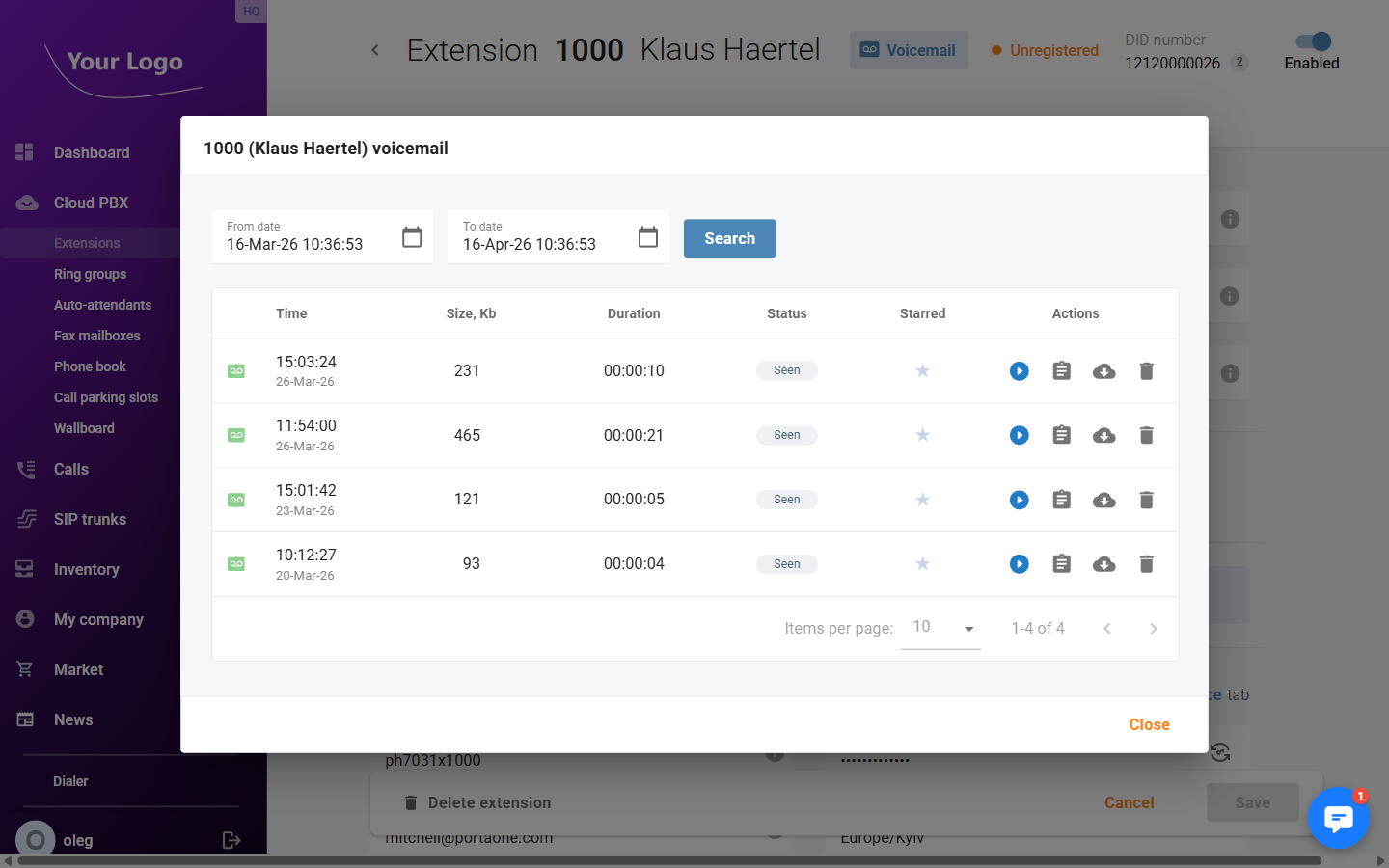
Filters
Use the date range filters to narrow down the messages shown:
| Filter | Description |
|---|---|
| From | Start of the date/time range to display. |
| To | End of the date/time range to display. |
Click Search to apply the filter.
Columns
| Column | Description |
|---|---|
| Time | Date and time the message was delivered. |
| Size, Kb | File size of the voicemail recording. |
| Duration | Length of the message in HH:MM:SS format. |
| Status | One or more badges: New (unread), Seen (played), Answered. |
| Starred | Star icon — click to mark or unmark a message as a favourite. |
| Actions | Per-message actions: play, view details, download, delete. |
Actions
| Button | Description |
|---|---|
| ▶ Play | Plays the message in an inline audio player directly in the list. |
| 📋 Details | Opens the Voicemail Detail dialog with full message information. |
| ☁ Download | Downloads the voicemail audio file (WAV format). |
| 🗑️ Delete | Deletes the message after confirmation. |
Voicemail Detail
Click the Details button to open the full detail view for a message.
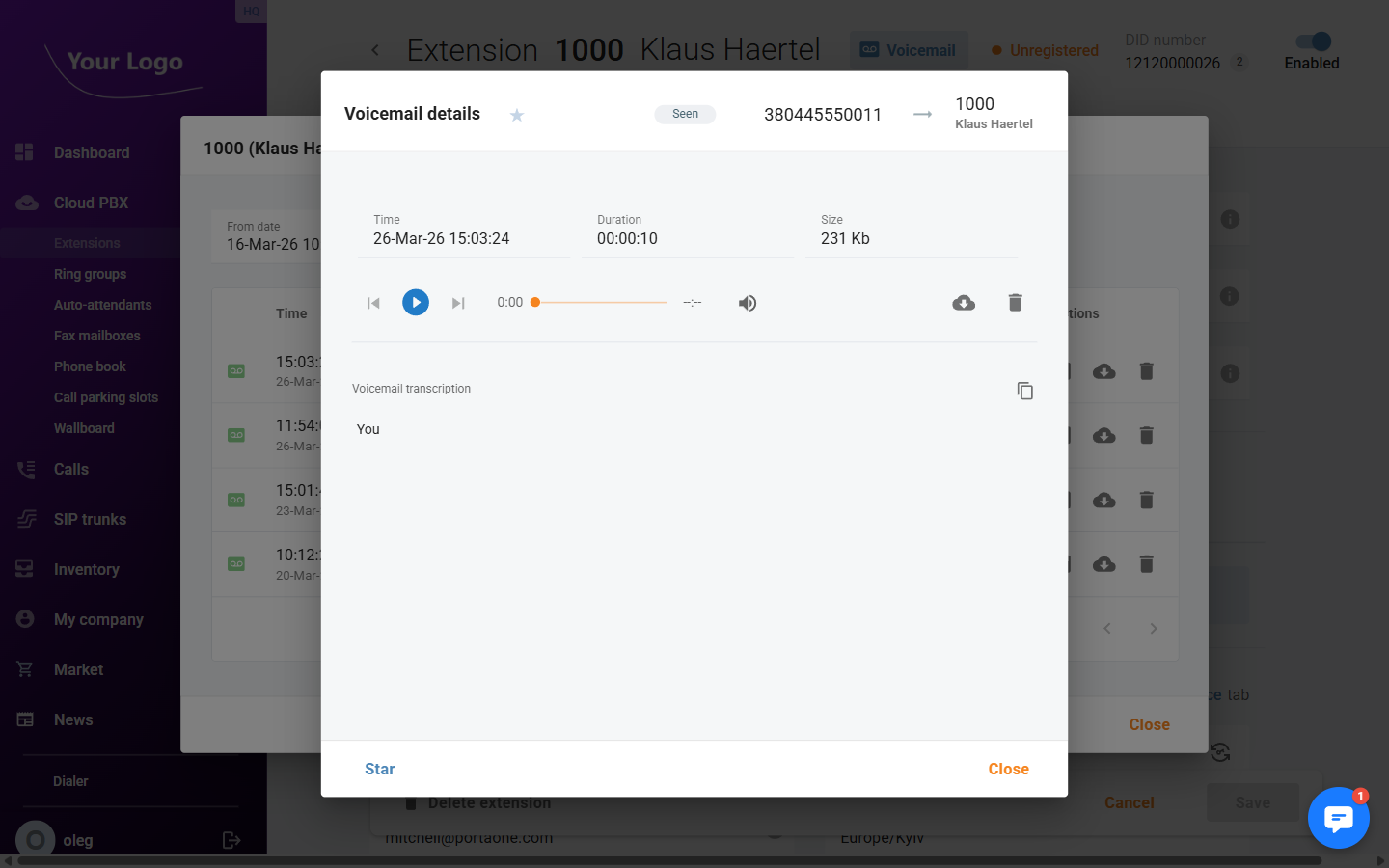
The detail dialog header shows the message status badges, the caller's number, and the destination extension. The dialog provides:
| Field | Description |
|---|---|
| Time | Delivery date and time of the message. |
| Duration | Length of the voicemail recording. |
| Size | File size of the recording. |
Below the metadata, an audio player lets you listen to the message directly in the browser.
If transcription is enabled on the account, the voicemail transcription text is shown below the player. Use the copy icon to copy the transcript to the clipboard.
Use the Download button to save the WAV file locally, or Delete to permanently remove the recording.
Configuring Voicemail (Unified Messaging)
Voicemail behaviour for each extension is configured under the extension's Unified messaging settings.
Navigate to Cloud PBX → Extensions, open the extension, and scroll to the Unified messaging section on the Extension tab.
| Setting | Description |
|---|---|
| Greeting type | Choose between Standard (system default), Personal (custom recording), Name (name recording), or Extended absence. |
| Greeting record | Preview or manage the active greeting. The caller hears this before leaving a message. |
| Require PIN | If enabled, a PIN is required to retrieve messages by phone. |
| Auto play messages | Automatically plays new messages when the extension owner dials into voicemail. |
| Announce date/time | Announces the date and time of each message before it plays. |
| Email address | When set, voicemail notifications (and optionally the audio file) are sent to this address. |
| Email option | Controls what is included in the email: notification only, or notification with recording attached. |
| File format | Audio format for the attached recording (e.g. WAV, MP3). |
If you want callers to reach voicemail after a number of rings with no answer, open the extension's Call settings tab and set the Default answering mode to Ring then Voicemail. Use the Timeout parameter to control how long the phone rings before the call is forwarded to voicemail.