Fax Mailboxes
Overview
Fax mailboxes allow your Cloud PBX to receive incoming faxes and deliver them as email attachments. Each fax mailbox has a dedicated extension number and an optional DID number for receiving faxes from external callers. Received faxes are forwarded to a configured email address in the format and action of your choice.
Navigate to Cloud PBX → Fax mailboxes.
Fax Mailboxes List
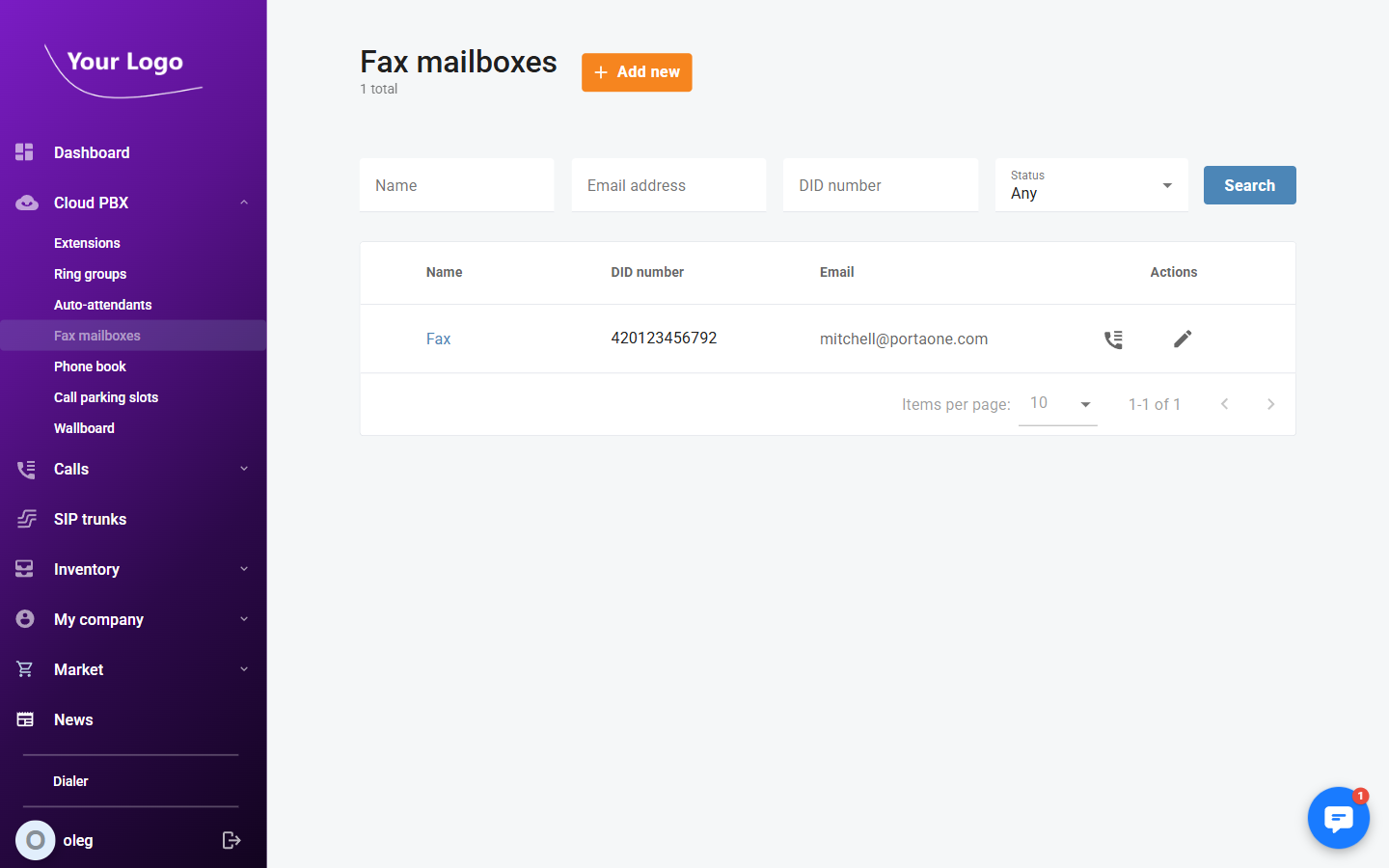
The list shows all fax mailboxes in your account.
| Column | Description |
|---|---|
| Name | The name of the fax mailbox. |
| DID number | The external DID number assigned for receiving faxes. |
| The email address where received faxes are delivered. | |
| Actions | Transmission history – view the fax transmission log; Edit (✏️) – open the fax mailbox detail; Delete – remove the fax mailbox. |
Use the Name, Email address, DID number, and Status filters to search. Click Search to apply.
Click + Add new to create a fax mailbox.
Adding a Fax Mailbox
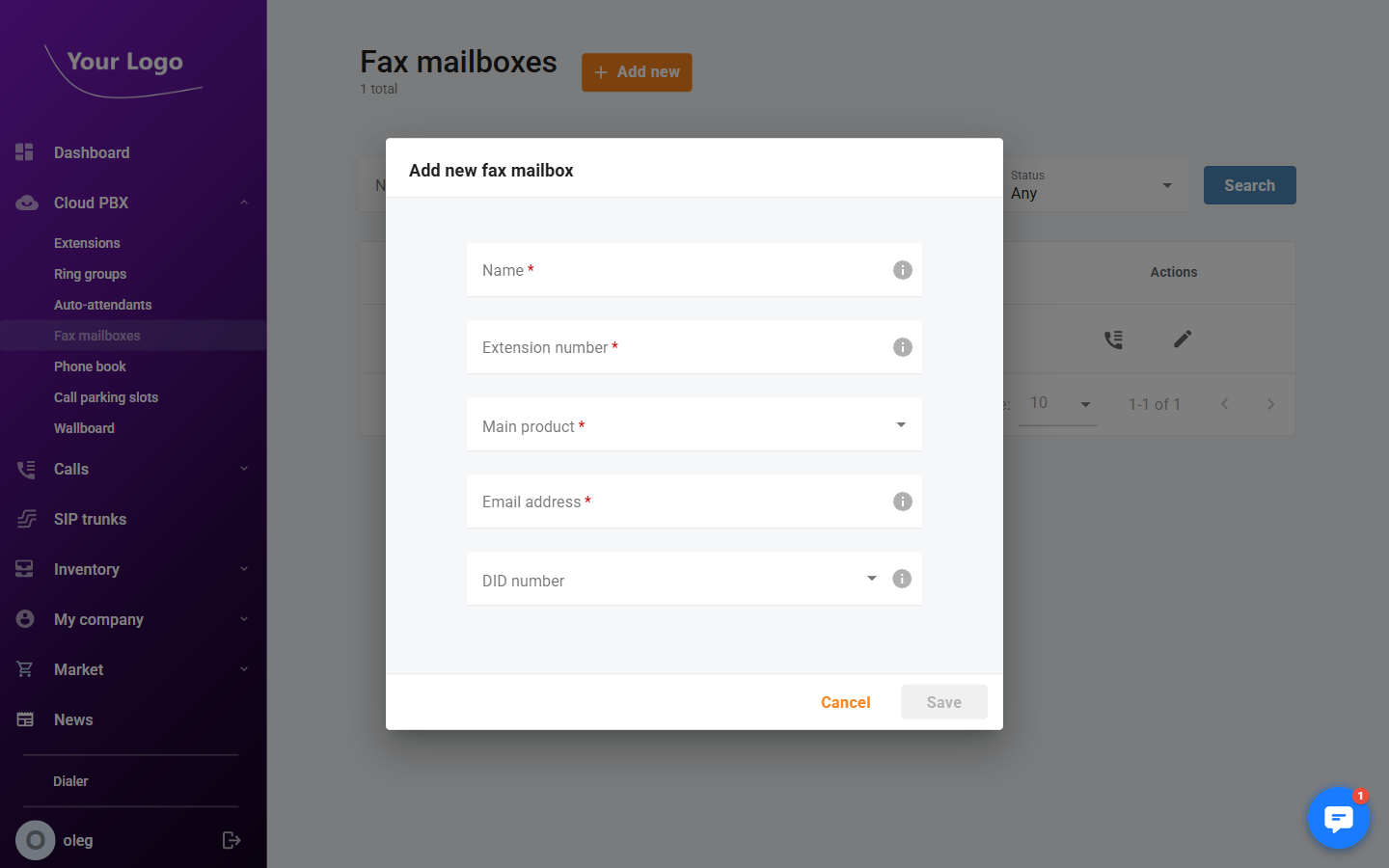
| Field | Description |
|---|---|
| Name* | A display name for the fax mailbox. |
| Extension number* | The internal extension number used to identify this fax mailbox within the PBX. |
| Main product* | The service plan to assign to this fax mailbox (e.g. Cloud PBX Fax2email). |
| Email address* | The email address that will receive incoming faxes as attachments. |
| DID number | An external DID number for receiving faxes from outside the PBX (optional). |
Fill in the required fields and click Save.
Fax Mailbox Detail
Click the Edit icon (✏️) to open a fax mailbox. The header shows the extension number, name, a Faxes button to view the transmission log, the assigned DID number, and an Enabled toggle. The detail page contains two tabs.
Extension Tab
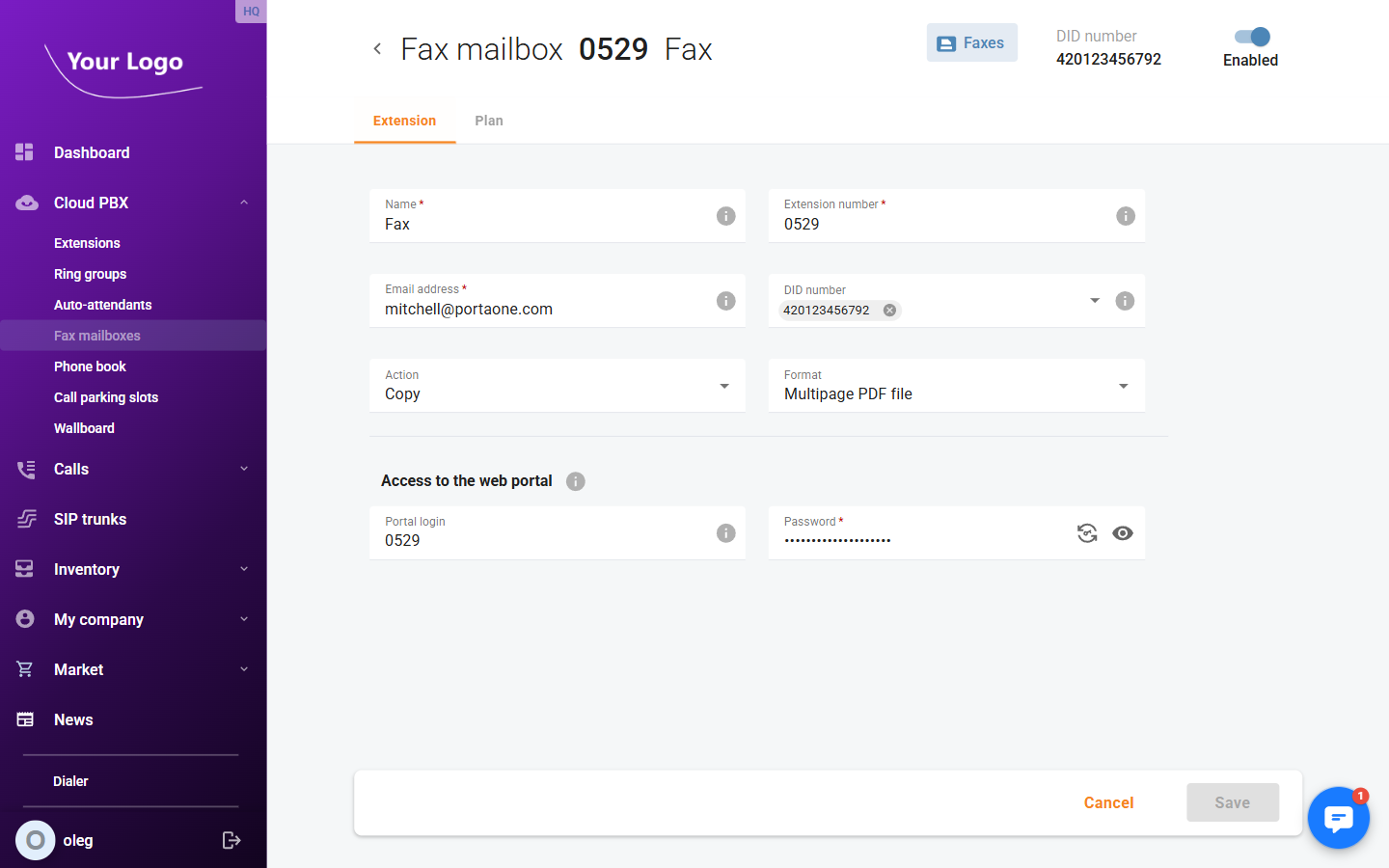
| Field | Description |
|---|---|
| Name* | The display name of the fax mailbox. |
| Extension number* | The internal extension number. |
| Email address* | The email address that receives incoming fax attachments. |
| DID number | External DID number(s) assigned to this fax mailbox (multi-select). |
| Action | What to do with the fax file after delivery: Copy keeps a copy on the server; other options may remove it after forwarding. |
| Format | The file format for fax email attachments (e.g. Multipage PDF file). |
Access to the web portal – Allows the fax mailbox owner to log in to the self-care portal to view received faxes.
| Field | Description |
|---|---|
| Portal login | Username for the self-care portal. |
| Password* | Password for the self-care portal login. |
Plan Tab
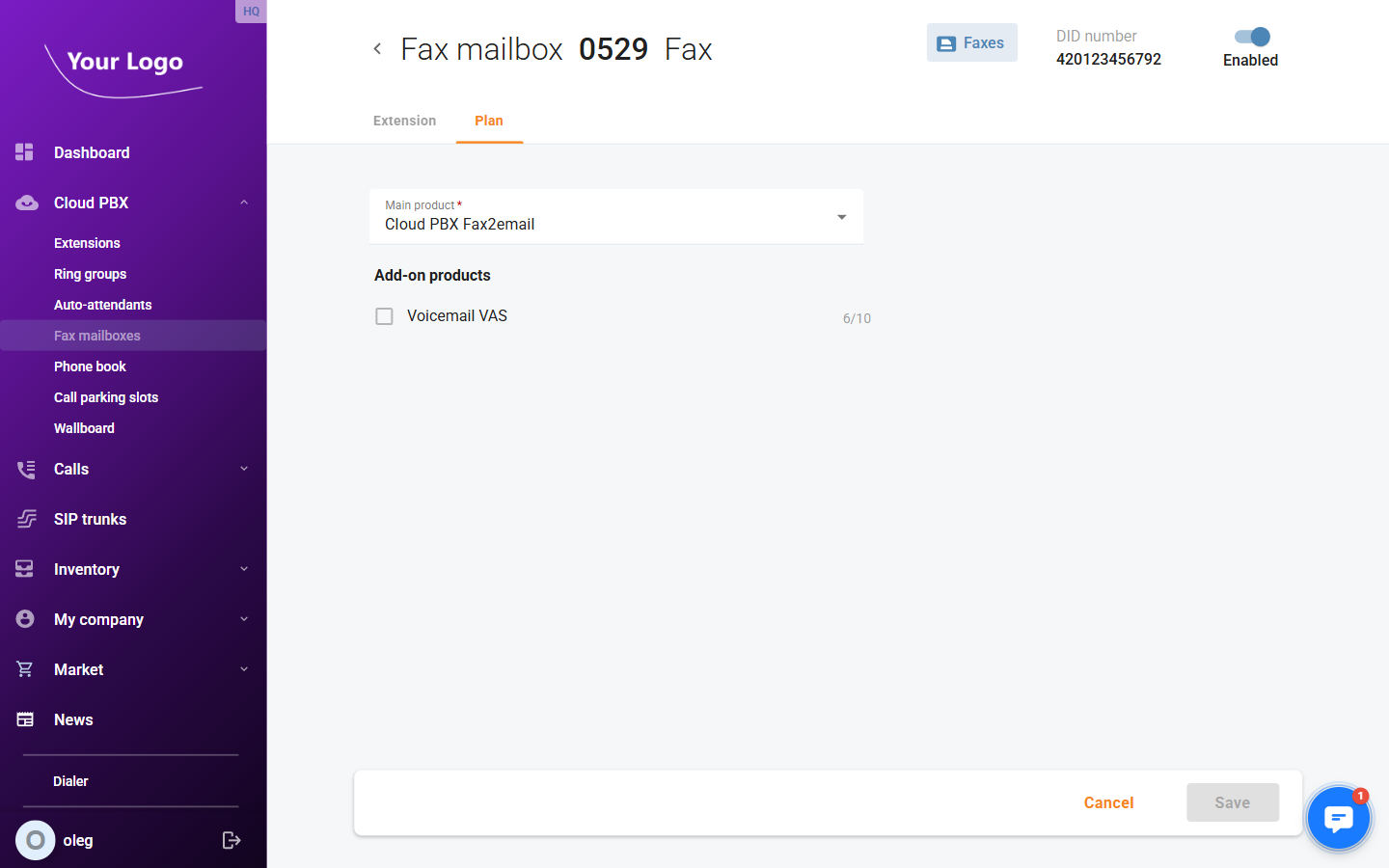
| Field | Description |
|---|---|
| Main product* | The service plan assigned to this fax mailbox (e.g. Cloud PBX Fax2email). |
| Add-on products | Optional add-on services available under the main plan. Each add-on shows current usage versus total allowed. |
Transmission History
Click the Transmission history icon in the Actions column to open the fax log for a mailbox. The log shows all fax transmissions within the selected date range.
| Column | Description |
|---|---|
| Connect time | Date and time the fax was transmitted. |
| Sender | Extension number and name of the sending party. |
| Recipient | Extension number and name of the receiving party. |
| Charge | Cost charged for the transmission in the account currency. |
Use the From date, To date, and Sender filters to narrow the results.