Billing
Overview
Open menu "My company > Billing" to view your account's financial status, review charges and payments, download invoices, and manage your payment method.
The page header displays your current Balance and Credit limit, and provides the + Make a payment button to top up your account on demand.
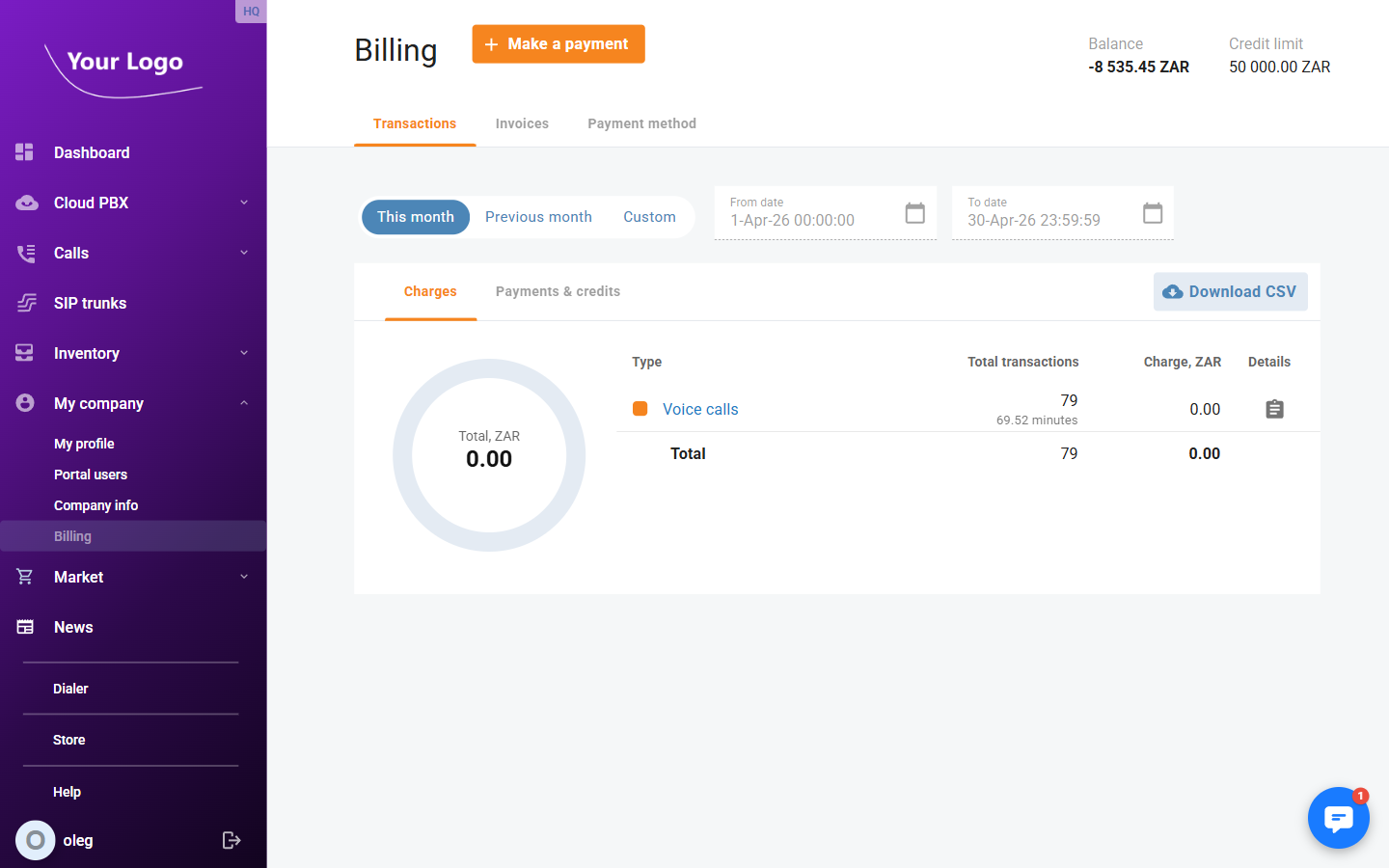
Transactions
The Transactions tab shows a summary of all charges and payments for a selected time period.
Period Selection
Use the period buttons at the top to filter the data:
| Option | Description |
|---|---|
| This month | Shows transactions for the current calendar month (default). |
| Previous month | Shows transactions for the previous calendar month. |
| Custom | Enables the From date and To date pickers for a custom range. |
Charges
The Charges sub-tab shows a breakdown of all service charges for the selected period. A donut chart on the left visualises the share of each service type in the total.
| Column | Description |
|---|---|
| Type | Service type (e.g. Subscriptions, Voice calls, Incoming calls, LTE). Each type is colour-coded in the donut chart. Click the type name to view individual transaction records. |
| Total transactions | Number of billing events for this type. For call-type services, also shows the total duration or volume (e.g. minutes, gigabytes). |
| Charge | Total amount billed for this type in the account currency. |
| Details | Opens a detailed transaction list for this service type. |
A Total summary row at the bottom aggregates all types.
Payments & Credits
The Payments & credits sub-tab shows all incoming payments and credit adjustments for the selected period, using the same table structure:
| Column | Description |
|---|---|
| Type | Payment or adjustment type (e.g. Credits / Adjustments). |
| Total transactions | Number of payment events. |
| Amount | Total amount received or credited in the account currency. |
| Details | Opens the detailed transaction list. |
Download CSV
Click Download CSV (available on both sub-tabs) to export the current period's transaction summary as a CSV file.
Invoices
The Invoices tab lists all invoices issued for your account.
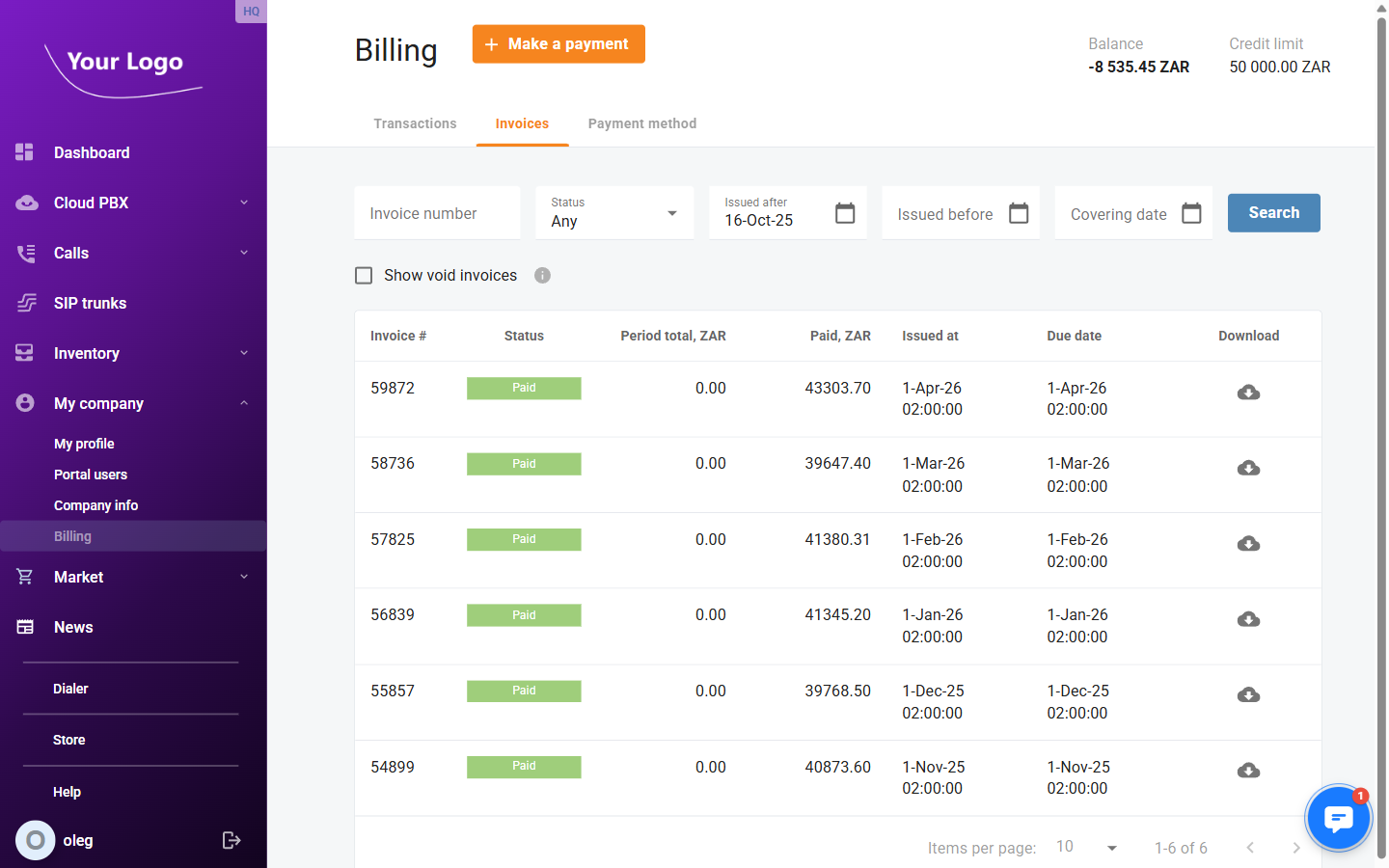
Filters
| Filter | Description |
|---|---|
| Invoice number | Filter by a specific invoice number. |
| Status | Filter by invoice status: Any, Paid, Unpaid, or other values. |
| Issued after | Show only invoices issued on or after this date. |
| Issued before | Show only invoices issued on or before this date. |
| Covering date | Show only invoices whose billing period covers this date. |
| Show void invoices | When checked, void (cancelled) invoices are included in the list. |
Click Search to apply the filters.
Invoice List Columns
| Column | Description |
|---|---|
| Invoice # | Unique invoice number. |
| Status | Payment status badge — Paid (green), Unpaid (red), or other statuses. |
| Period total | Total amount charged for the billing period covered by this invoice. |
| Paid | Amount already paid against this invoice. |
| Issued at | Date and time the invoice was generated. |
| Due date | Payment deadline for this invoice. |
| Download | Click the download icon (☁) to save the invoice as a PDF file. |
Payment Method
The Payment method tab lets you store a card for automatic payments and configure when those payments are triggered.
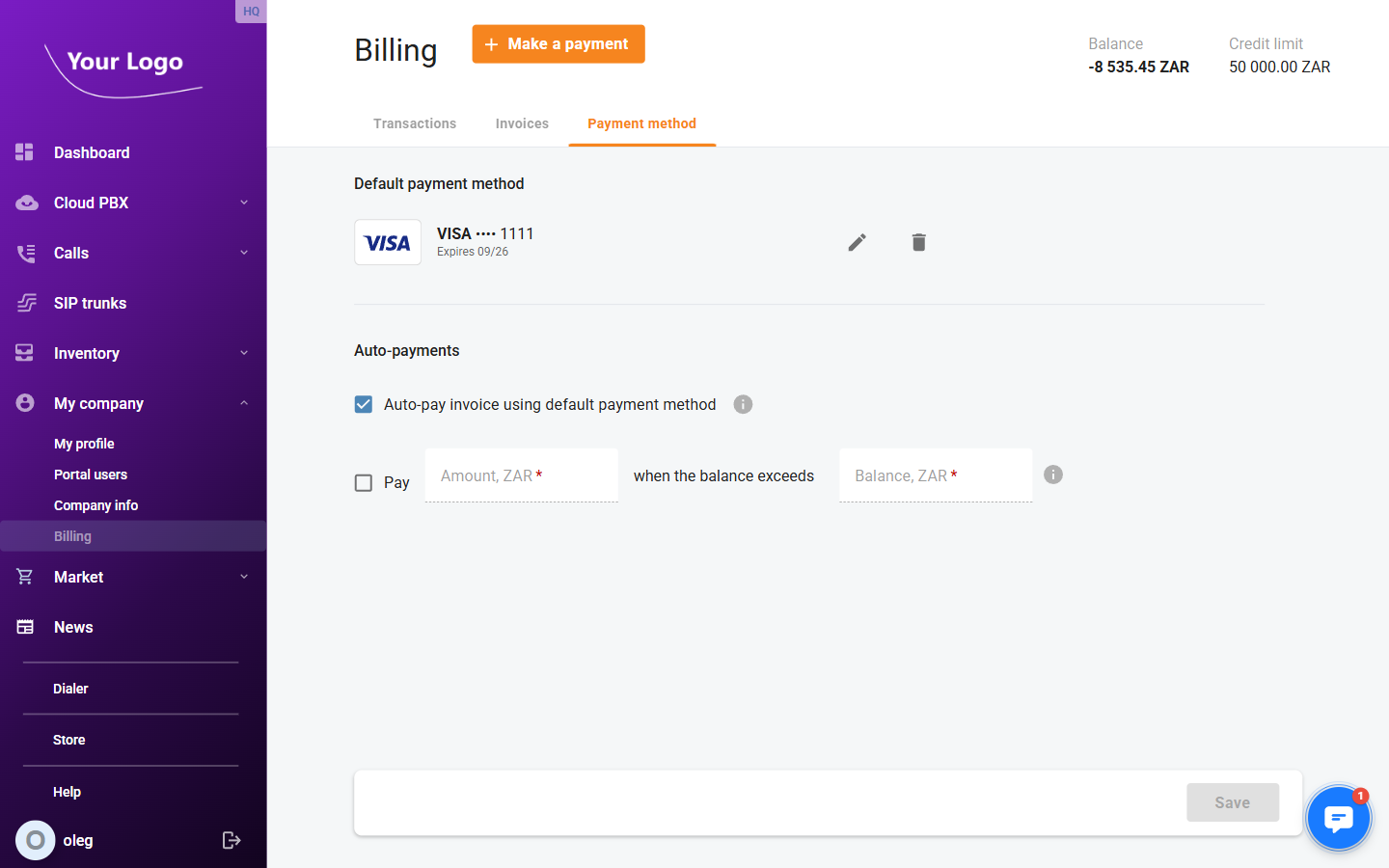
Default Payment Method
This section displays the currently saved card. The card type logo, masked card number (last 4 digits), and expiry date are shown.
| Action | Description |
|---|---|
| ✏️ Edit | Update the stored card details. |
| 🗑️ Delete | Remove the default payment method. |
| Add method | Add a new card if no default method is set. |
A payment method can only be saved after the first manual payment is made via the Make a payment dialog.
Auto-Payments
Configure the conditions under which the system charges your default payment method automatically.
| Setting | Description |
|---|---|
| Auto-pay invoice using default payment method | When enabled, the saved card is automatically charged at the end of each billing period to settle the invoice. |
| Pay [amount] when the balance exceeds [threshold] | When enabled, the system automatically charges the specified amount to the saved card whenever your balance exceeds the defined threshold. Enter the Amount and the Balance threshold in your account currency. |
Click Save to apply changes to the auto-payment settings.
Making a Manual Payment
Click + Make a payment in the page header to open the payment dialog. Fill in the card details and the amount to pay. You can optionally check Save as default payment method to store the card for future auto-payments.
| Field | Description |
|---|---|
| Cardholder name | Full name as it appears on the card. |
| Card number | 16-digit card number. |
| Expiration date | Month and year the card expires. |
| CVV | 3- or 4-digit security code. |
| Billing address | Street address associated with the card. |
| Country / State / City / Postal code | Billing address details. |
| Amount | Amount to pay in the account currency. |
| Save as default payment method | When checked, this card is stored for future automatic payments. |