Portal Users
Overview
Portal Users is where you manage who has access to your Cloud PBX portal and what they can do. Each portal user has a login, a role that defines their permissions, and optionally an email address and access restrictions.
Navigate to My company → Portal users.
Portal Users List
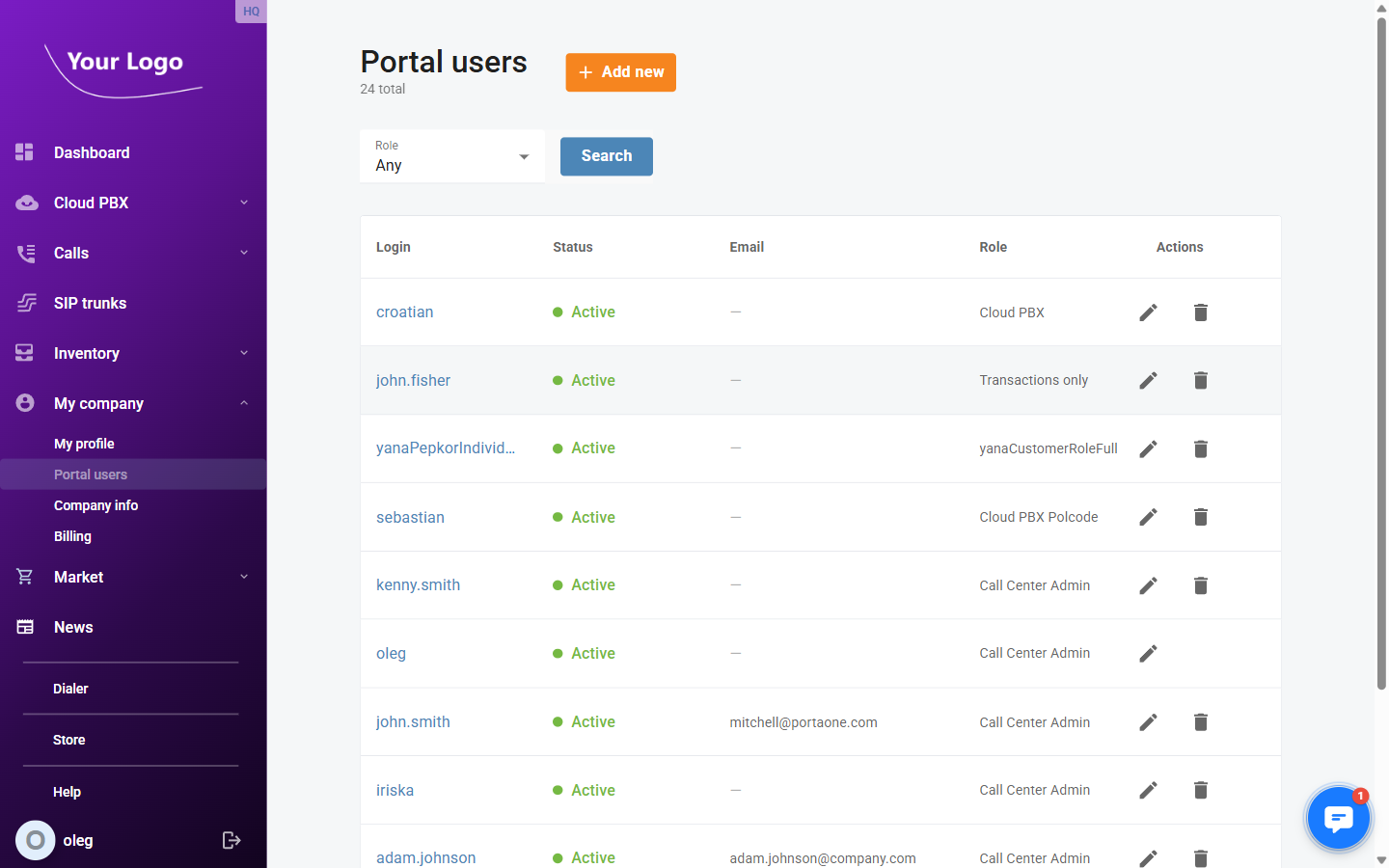
The list shows the total number of portal users and the following columns:
| Column | Description |
|---|---|
| Login | The username used to sign into the portal. Click the login to open the user's detail page. |
| Status | ● Active – the user can log in; ● Expired – the user's account has passed its expiration date. |
| The user's email address (optional). | |
| Role | The permission role assigned to this user (e.g. Call Center Admin, Transactions only). |
| Actions | ✏️ Edit the user · 🗑️ Delete the user. |
Use the Role filter to narrow the list to users with a specific role, then click Search.
Add a New Portal User
Click + Add new to open the Add new portal user dialog.
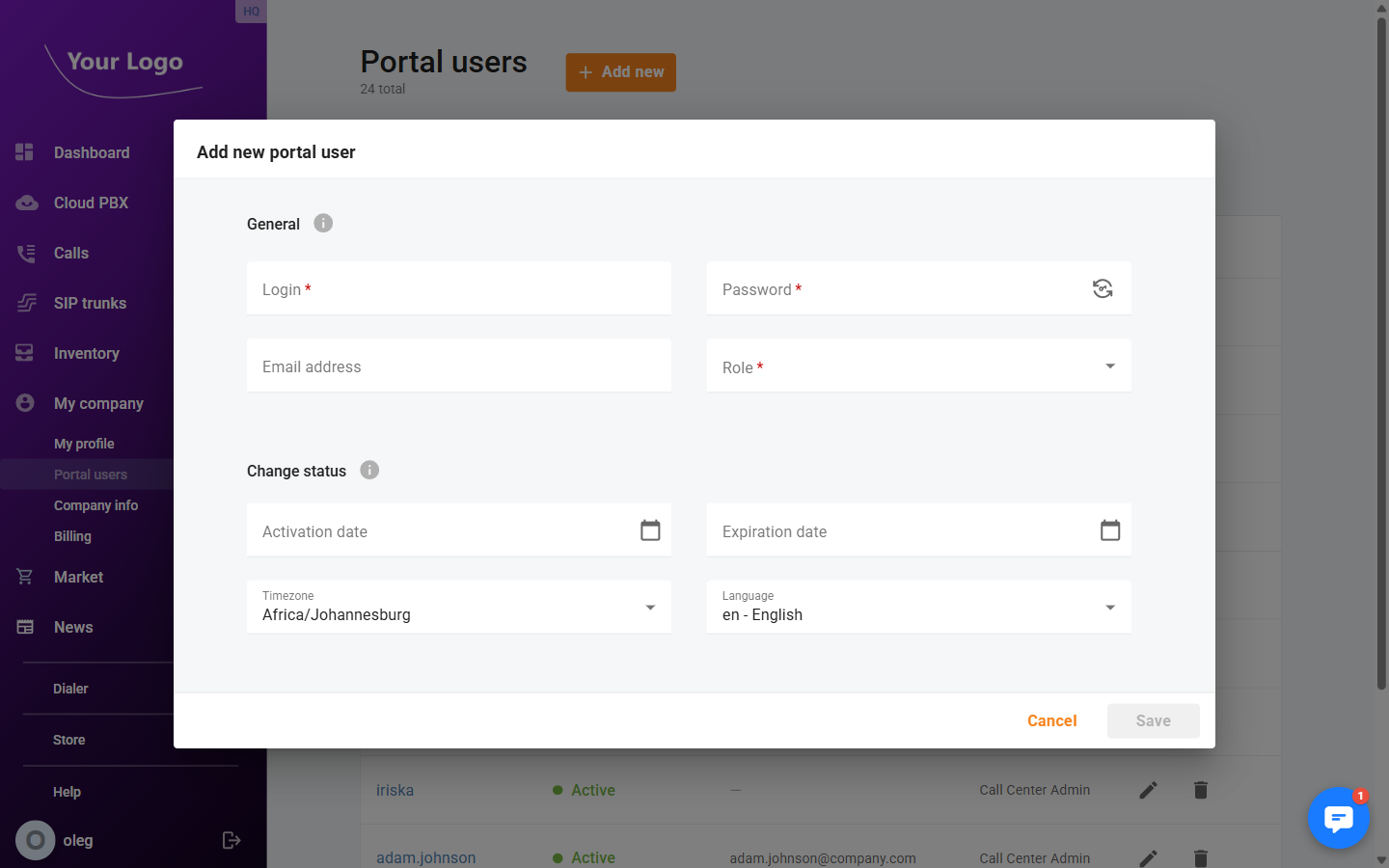
General
| Field | Description |
|---|---|
| Login ✱ | Unique username for signing into the portal. Maximum 64 characters. |
| Password ✱ | Initial password. Use the 🔄 icon to generate a secure random password. Maximum 32 characters. |
| Email address | Optional. Used for notifications. |
| Role ✱ | Permission role that controls what this user can see and do in the portal. |
Change Status
| Field | Description |
|---|---|
| Activation date | Date from which the user can log in. Leave blank to activate immediately. |
| Expiration date | Date after which the user can no longer log in. Leave blank for no expiration. |
| Timezone | User's local timezone, used for date/time display and scheduling. |
| Language | Portal interface language for this user. |
Click Save to create the user.
Edit a Portal User
Click the ✏️ icon in the Actions column, or click the login name, to open the user's detail page.
The page header shows the user's login and their current Status (Active / Expired).
Settings Tab
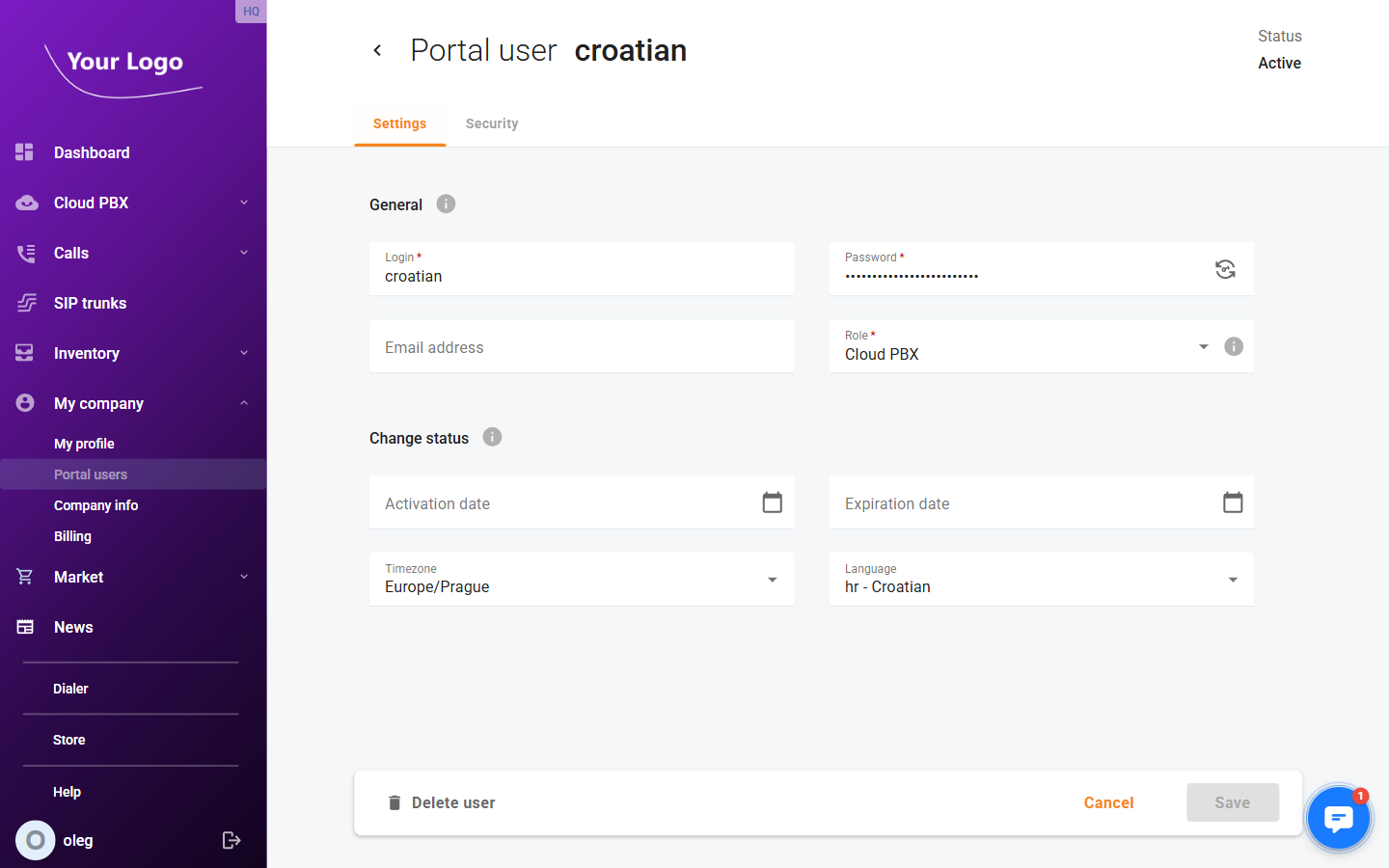
The Settings tab contains the same General and Change status fields as the creation dialog (see above). All fields can be edited except Role, which is read-only for your own user.
Security Tab
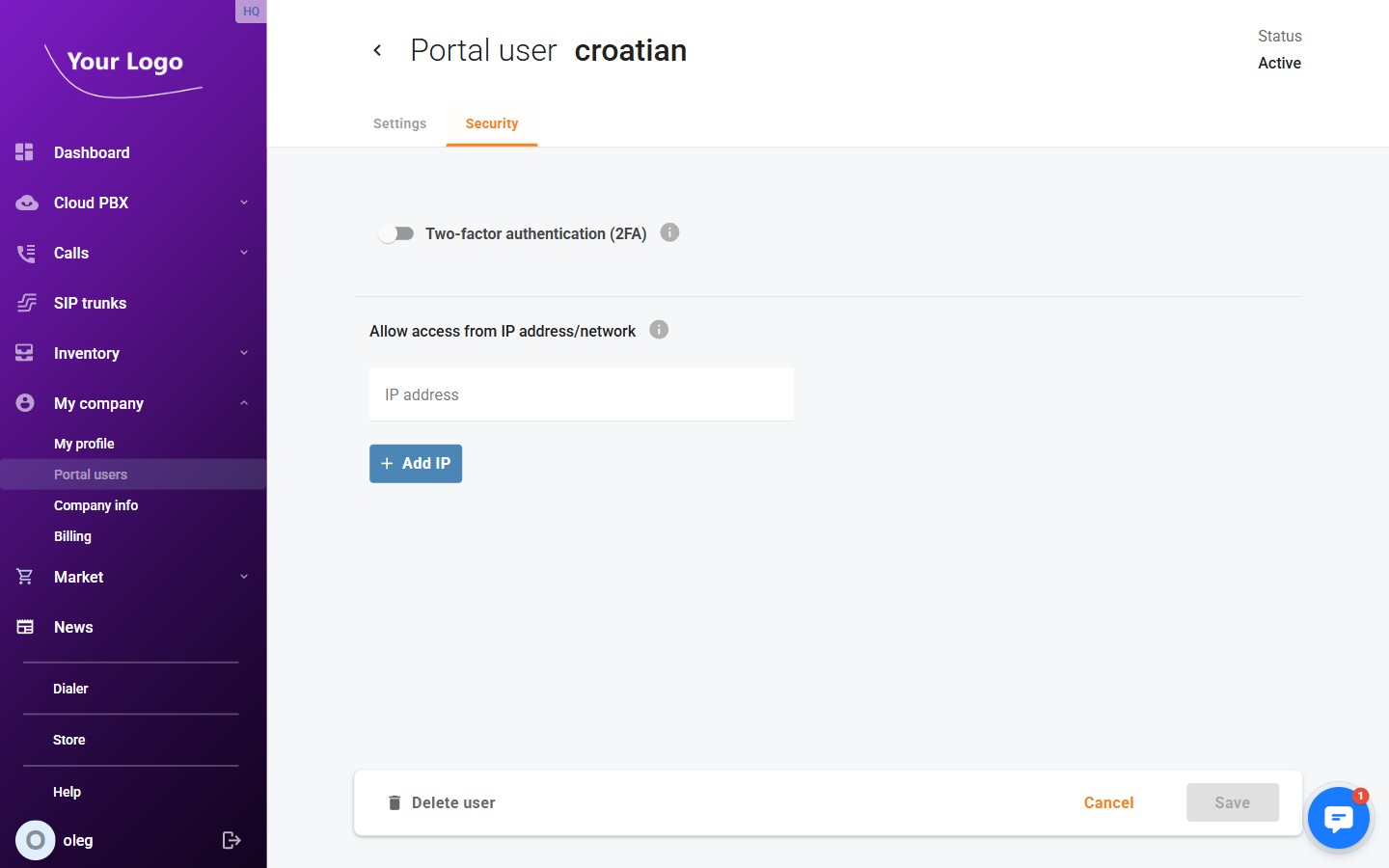
The Security tab provides two security controls:
Two-Factor Authentication (2FA)
Toggle Two-factor authentication (2FA) on or off for this user. When enabled, the user must enter a one-time password from an authenticator app on each login. The Reset 2FA key button forces the user to re-scan the QR code on their next login — useful when a user gets a new mobile device.
See Two-Factor Authentication for full setup details.
Allow Access From IP Address/Network
Restrict this user's login to specific IP addresses or network ranges (CIDR notation). Click + Add IP to add an address. You can add multiple entries.
| Field | Description |
|---|---|
| IP address | An IPv4 address or CIDR range (e.g. 192.168.1.0/24) from which this user is allowed to log in. |
If any IP restrictions are configured, the user can only log in from those addresses. Access from all other IPs is denied.
Delete a Portal User
Open the user's detail page and click Delete user in the footer bar, then confirm the deletion.
You cannot delete your own user account.